
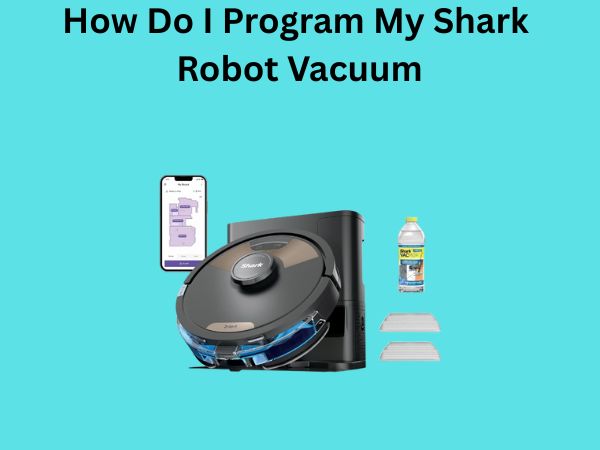
How Do I Program My Shark Robot Vacuum? A Beginner’s Guide
So you’ve just unboxed your shiny new Shark robot vacuum, and now you’re staring at it wondering where to even begin. Don’t worry—you’re not alone in feeling a bit overwhelmed. Programming a Shark robot vacuum is actually much simpler than it might seem, and I’m here to walk you through every single step. Think of this as your personal roadmap to becoming a robot vacuum expert.
Understanding Your Shark Robot Vacuum Before Programming
Before we dive into the actual programming, let’s take a moment to understand what we’re working with. Your Shark robot vacuum is essentially a small, intelligent robot designed to navigate your home and clean floors automatically. It’s equipped with sensors, brushes, and a dustbin that work together to keep your floors spotless without you lifting a finger.
The key to programming your vacuum effectively is understanding its basic components and what they do. When you know what each button does and what each feature means, programming becomes a breeze.
Key Components You Need to Know
- The main power button that activates and deactivates your vacuum
- The smartphone app (if your model supports it) for remote control
- The docking station where your vacuum charges between cleaning sessions
- The control panel with schedule buttons and navigation features
- The dustbin that collects debris during cleaning cycles
Getting Your Shark Robot Vacuum Ready for Programming
Before you start programming, there are a few preliminary steps you’ll want to take. These initial preparations ensure that your vacuum is in the best possible condition to receive and execute your commands.
Step One: Charge Your Vacuum Completely
When you first get your Shark robot vacuum, the battery likely isn’t fully charged. Place it on the docking station and let it charge for at least two to three hours. A fully charged vacuum is essential because you don’t want your programmed cleaning sessions interrupted by a low battery. Plus, it gives you time to familiarize yourself with the device while it’s charging.
Step Two: Clean the Sensors and Brushes
Before programming your first cleaning schedule, take a moment to clean the sensors and brushes. Even new vacuums can have dust or manufacturing residue on them. Wipe down the cliff detection sensors (usually located underneath) with a soft, dry cloth. This ensures your vacuum can properly detect obstacles and boundaries.
Step Three: Prepare Your Home
Walk around your home and remove any large objects, cables, or toys from the floor. Your vacuum is smart, but it’s not superhuman. Clearing a path helps it navigate more efficiently and reduces the chances of it getting stuck during your programmed cleaning sessions.
Programming Your Shark Robot Vacuum Using the Control Panel
Let’s get into the nitty-gritty of actual programming. Most Shark robot vacuums have a physical control panel on top, and this is where you’ll create your cleaning schedule.
Understanding the Buttons on Your Vacuum’s Control Panel
Your Shark vacuum’s top panel contains several buttons. The main ones you’ll interact with are the power button, the spot-clean button, and the schedule buttons. Each of these plays a specific role in how your vacuum operates.
The Power Button
This is your on and off switch. Press it once to turn on the vacuum, and it will either start cleaning immediately or await further instructions, depending on your model. Press it again to power it off.
The Schedule Button
This is where the magic happens. The schedule button allows you to program your vacuum to start cleaning at a specific time each day. It’s like setting an alarm clock, except instead of waking up, your floors get cleaned.
Step-by-Step Programming Guide for Daily Cleaning Schedules
Now that you understand the basic buttons, let’s program your first cleaning schedule. I’ll walk you through this slowly and deliberately.
Programming a Single Daily Schedule
Most Shark robot vacuums allow you to set up one or more daily cleaning schedules. Here’s how you do it:
- Make sure your vacuum is powered on and properly docked
- Locate the Schedule button on the control panel
- Press and hold the Schedule button for about three seconds
- The vacuum should beep or provide visual feedback that you’re in schedule mode
- Use the directional buttons or interface to set your desired time
- Press confirm to save your schedule
- Your vacuum will now start cleaning at that time every day automatically
Setting Multiple Schedules Throughout the Week
Want your vacuum to clean more than once a day? Maybe you’d like it to run in the morning and again in the evening? Many Shark models allow multiple schedules. The process is the same as above—simply repeat the scheduling steps for each additional time slot you want to create.
This is incredibly useful if you have a busy household with kids and pets. You can schedule cleaning sessions to run during times when the house is quieter, so the vacuum won’t interfere with your activities.
Using the Shark Robot Vacuum Mobile App
If your Shark model is connected-enabled, you’re in for a treat. The smartphone app gives you unprecedented control over your vacuum, even when you’re not at home.
Downloading and Installing the App
Search for the Shark app on your device’s app store. Download the official Shark app (not to be confused with any knockoff versions). Once installed, open it and create an account if you don’t already have one.
Connecting Your Vacuum to the App
The first time you open the app, you’ll be prompted to add a device. Follow these steps:
- Select your vacuum model from the list
- Ensure your vacuum is powered on and within range of your WiFi
- Press the WiFi button on your vacuum (usually a dedicated button or combination of buttons)
- The app will search for your vacuum and prompt you to connect to the device’s network
- Once connected, your app will guide you through naming your vacuum and assigning it to a room
Programming Schedules Through the Mobile App
Once your vacuum is connected to the app, programming becomes even more intuitive. Open the app and look for the Schedule or Settings section. You’ll typically see options to:
- Create daily recurring schedules
- Set specific days and times for cleaning
- Enable or disable schedules as needed
- Receive notifications when your vacuum starts or finishes cleaning
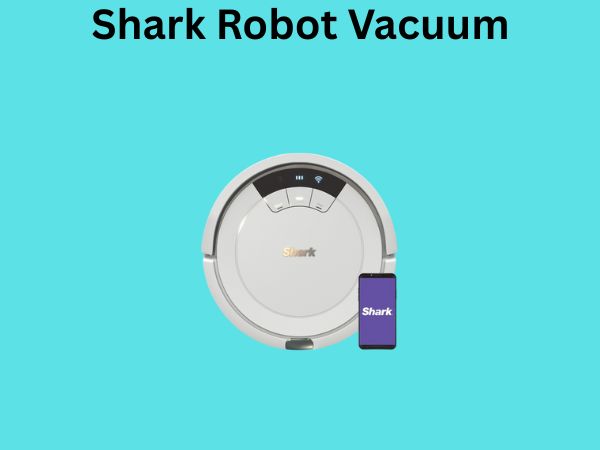
Advanced App Features for Programming
Beyond basic scheduling, the Shark app often includes advanced features like room-specific cleaning, which vacuums allow you to designate specific areas of your home for focused cleaning during scheduled sessions. There’s also no-go zone creation, where you can mark areas you don’t want the vacuum to enter.
Understanding Cleaning Modes and How to Program Them
Your Shark robot vacuum likely has multiple cleaning modes. These determine how aggressively the vacuum cleans and how long it will run.
Standard Cleaning Mode
This is the default mode most Shark vacuums start in. It’s perfect for routine maintenance and doesn’t drain the battery too quickly. It’s ideal for daily scheduled cleaning.
Max Mode or Turbo Mode
When your floors need a deeper clean, many Shark models have a high-power mode. This mode uses more battery but provides superior suction. If your model allows it through the app or control panel, you can program certain schedules to run in this mode.
Spot Cleaning Mode
This mode concentrates cleaning in a specific area. While you can’t typically schedule this in advance, it’s useful when you notice a spill or mess and need immediate action.
Troubleshooting Common Programming Issues
Sometimes things don’t go as planned. Let me address some common issues you might encounter when programming your Shark robot vacuum.
Your Vacuum Won’t Start at the Scheduled Time
If your vacuum isn’t starting when it’s supposed to, first check that it’s properly docked. Your Shark needs to be on its charging dock to receive schedule commands. Also verify that the schedule was actually saved—sometimes the save didn’t register. Reprogram it and make sure you hear confirmation beeps.
The App Won’t Connect to Your Vacuum
WiFi connection issues are common. Make sure your vacuum and phone are connected to the same WiFi network. If they’re on different networks or bands (2.4GHz vs 5GHz), the app won’t be able to communicate. Restart your router and try connecting again.
You Can’t Find the Schedule Button
Different Shark models have slightly different control panel layouts. If you can’t find a dedicated schedule button, check your user manual. Some models combine multiple functions into a single button accessed by holding it for different lengths of time.
Best Practices for Programming Your Shark Robot Vacuum
Now that you understand how to program, let me share some wisdom about the best ways to do it for optimal results.
Schedule During Your Busiest Times
Program your vacuum to clean when you’re typically not home or when noise won’t bother you. Many people find scheduling for mid-morning or early evening works well.
Don’t Overprogram
While your vacuum can run every day, that doesn’t mean it should. Most homes don’t need daily deep cleaning. Program it for two to three times per week unless you have specific needs like pets that shed heavily.
Keep Your Schedule Consistent
Robots are creatures of habit, and so are their schedules. Try to keep your programmed times the same each week so your vacuum learns your home’s layout better over time.
Conclusion
Programming your Shark robot vacuum is genuinely straightforward once you break it down into manageable steps. Whether you’re using the physical control panel or the convenient mobile app, you now have all the knowledge you need to set up a cleaning schedule that works perfectly for your household. Start simple with one daily schedule, and as you become more comfortable, expand to multiple sessions or advanced features. Your Shark vacuum will reward you with consistently clean floors while you focus on the things that matter most. Remember, the goal is to make your life easier, and a well-programmed Shark vacuum does exactly that.
Frequently Asked Questions
Can I program my Shark robot vacuum to clean specific rooms only?
If your Shark model has WiFi connectivity and the mobile app, yes, you can often set it to clean specific rooms using the no-go zone and room designation features. Without the app, your vacuum will typically clean your entire open floor space. Check your specific model’s features to confirm this capability.
What happens if my scheduled cleaning starts but I’m home and don’t want it running?
You can simply press the power button to stop your vacuum immediately. If it’s already docked, you can also press the power button on the dock. There’s no penalty for interrupting a scheduled cleaning—your vacuum will simply return to its dock when you stop it.
Can I change my programmed schedule after setting it?
Absolutely. You can reprogram your schedule anytime using the same process you used to create it initially. The new schedule will overwrite the old one. Using the mobile app makes this even easier, as you can modify schedules directly from your phone.
How long does it take for my Shark vacuum to clean a typical home?
This depends on your home’s size and layout, but most Shark robot vacuums take between 60 to 120 minutes to clean a typical 1,000 to 1,500 square foot home. Larger homes or homes with many obstacles take longer. Always ensure you schedule enough time before you need the floors clean.
Will programming my Shark vacuum to run daily drain the battery too quickly?
Modern Shark vacuums are designed to handle daily schedules without battery concerns. The vacuum returns to its dock automatically when the battery is low, and it charges between sessions. However, using Max mode daily might require more frequent charging, so consider using standard mode for daily schedules.
“`


![7 Best Robot Vacuum With Alexa [2026]](https://robotvacuumfact.com/wp-content/uploads/2026/09/7-best-robot-vacuum-with-alexa-2026-featured-768x432.jpg)