How Do I Restart My Shark Robot Vacuum? A Complete Guide to Getting Your Cleaner Back on Track
There’s nothing quite like the frustration of watching your Shark robot vacuum freeze mid-cleaning cycle or refuse to respond to your commands. You’re standing there with your phone in hand, tapping buttons that seem to have stopped working, wondering if your trusty cleaning companion has finally given up the ghost. But here’s the good news: in most cases, a simple restart is all you need to breathe new life into your device.
I’ve been there myself, staring at my vacuum like it’s some kind of puzzle I can’t quite solve. The truth is, restarting a Shark robot vacuum is far easier than you might think, and it’s often the first step to resolving those pesky technical hiccups. Whether your vacuum is stuck in a corner, won’t connect to your app, or simply seems confused about its mission, I’m going to walk you through everything you need to know.
Understanding Your Shark Robot Vacuum
Before we dive into the restart process, let’s talk about what makes your Shark vacuum tick. These aren’t your grandmother’s vacuum cleaners. Your Shark robot is a sophisticated piece of technology with sensors, Wi-Fi connectivity, scheduling features, and smart navigation systems. Think of it as a tiny robot butler designed specifically for your floors.
The beauty of having all this technology is that it can learn your home layout, avoid obstacles, and even return to its charging dock when the battery runs low. But with great features comes the occasional hiccup. Just like your smartphone or computer, sometimes your Shark needs a moment to reset and recalibrate itself.
Why Your Shark Robot Vacuum Might Need a Restart
Understanding why your vacuum might need a restart can help you recognize when it’s time to take action. Your device might act glitchy for several reasons, and identifying the cause can actually save you time and frustration.
Software Glitches and Frozen Apps
Just like any app on your phone, the Shark app can occasionally freeze or become unresponsive. You might find that you can’t schedule cleaning sessions, the app won’t connect to your vacuum, or commands simply don’t register. This is often a sign that your vacuum’s internal system needs to reset itself.
Wi-Fi Connection Issues
Is your Shark vacuum struggling to stay connected to your Wi-Fi network? Does it disconnect randomly or fail to connect to your home network despite having done so before? A restart can often resolve these connectivity headaches. Your vacuum might be holding onto outdated connection information or experiencing a brief conflict with your network.
Performance Problems and Navigation Issues
Has your vacuum started moving in circles, getting stuck in the same spot, or acting confused about where it should be going? Sometimes your robot loses track of the map it created during initial setup. A restart can help it recalibrate its sensors and get back to efficient cleaning patterns.
Unresponsive Controls
When your vacuum ignores your voice commands, app controls, or remote control buttons, it’s definitely time for a reset. The device’s communication systems might be overwhelmed or temporarily confused about which command to execute first.
The Simple Restart: Soft Reset vs. Hard Reset
Here’s where understanding the difference between a soft reset and a hard reset becomes important. They’re not quite the same thing, and knowing which one you need can make all the difference.
What Is a Soft Reset?
A soft reset is the gentler approach. Think of it like telling your vacuum to take a quick nap and wake up refreshed. You’re not erasing any of its memories or settings. The vacuum will still remember your home layout, your scheduling preferences, and your Wi-Fi password. It’s just rebooting the system to clear out temporary glitches.
What Is a Hard Reset?
A hard reset is the nuclear option. It wipes everything clean and returns your vacuum to its factory settings. This means your home maps, preferences, and all stored data will disappear. You’ll essentially be setting up your Shark from scratch, as if you’d just taken it out of the box. Reserve this for when a soft reset hasn’t solved your problems.
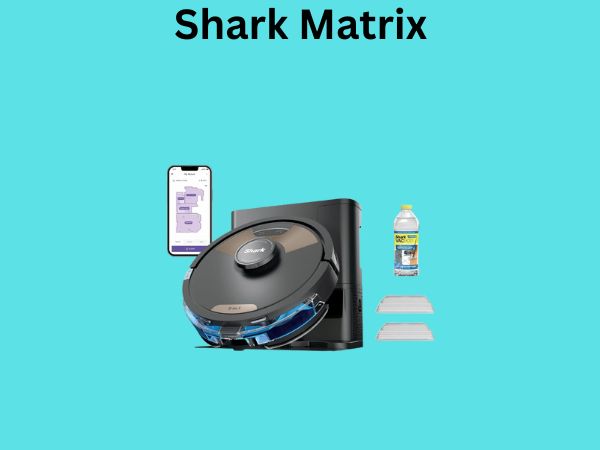
Step-by-Step: How to Perform a Soft Reset on Your Shark Robot Vacuum
Let’s start with the soft reset, since this is what you’ll want to try first in most situations.
The Power Button Method
This is the most straightforward approach you can take:
- Locate the power button on your Shark vacuum. Most models have this on the top of the device.
- Press and hold the power button for approximately three to five seconds.
- Wait for the vacuum to completely power down. You might see lights fade or hear a shutdown sound.
- Leave it unpowered for at least 30 seconds. This gives the system time to fully discharge and reset.
- Press the power button again to turn it back on.
- Give it a moment to boot up completely before attempting any commands.
That’s it! Many people are surprised at how often this simple action resolves minor issues. It’s like rebooting your computer after a long day of use.
The Dock Reset Method
Another gentle way to restart your Shark is through its charging dock:
- Send your vacuum back to its dock, or place it on the dock manually if it’s not responding to dock commands.
- Allow it to sit on the dock for a full two to three minutes.
- During this time, the device is establishing a connection with the dock and checking its battery status.
- Remove the vacuum from the dock and place it on the floor.
- Press the power button or use your app to send a cleaning command.
This method works particularly well when your vacuum is having connectivity issues with its dock or seems confused about its charging status.
Understanding the Hard Reset Process
If the soft reset didn’t work, or if your problems are more persistent, it might be time for a hard reset. This is a more dramatic step, so let me walk you through it carefully.
When Should You Consider a Hard Reset?
Before you erase everything, consider whether you really need to. A hard reset should be your last resort when:
- Your vacuum won’t connect to Wi-Fi no matter what you try.
- Multiple soft resets haven’t resolved the issue.
- You’re planning to sell the vacuum or give it to someone else.
- The device is behaving so erratically that no other troubleshooting steps have worked.
- You want to completely clear your home data for privacy reasons.
Steps for Performing a Hard Reset
The exact process varies slightly depending on your Shark model, but here’s the general approach:
- Turn on your Shark robot vacuum using the power button.
- Locate the reset button. On most models, this is a small button you’ll find on the bottom or back of the vacuum. You might need to use a tiny object like a paperclip or the tip of a pen to press it.
- Press and hold the reset button for about 10 to 15 seconds. You should see lights flash or hear sounds indicating the reset is happening.
- Release the button and wait for the vacuum to power down completely.
- Power it back on.
- Follow the initial setup process as if you’d just unboxed it for the first time.
I know this seems drastic, but sometimes it’s exactly what’s needed to get a troubled device working properly again.
Restarting Your Shark Through the Mobile App
If you prefer a digital approach, you can often restart your vacuum right through the SharkClean app. Here’s how:
Using the SharkClean App
- Open the SharkClean app on your smartphone or tablet.
- Make sure you’re logged into your account and that the app can see your vacuum.
- Look for a settings icon or menu option, usually found at the bottom or top of your screen.
- Navigate to device settings or device control options.
- Look for a “Restart,” “Reboot,” or “Reset” option in the menu.
- Select the restart option and confirm when prompted.
- The app will send a command to your vacuum to restart itself.
- Wait a few moments for the vacuum to complete the restart process.
This method is convenient because you don’t need to physically touch the vacuum. It’s perfect if your vacuum is currently stuck in another room or if you simply prefer not to walk over to it.
Troubleshooting: What If the Restart Didn’t Work?
Sometimes, even after a restart, your Shark still won’t cooperate. Don’t worry—there are several other things you can try before giving up.
Check Your Wi-Fi Connection
A weak or unstable internet connection is often the culprit behind persistent problems. Try moving your router closer to your vacuum’s charging dock, or place a Wi-Fi extender in the room where your vacuum spends most of its time. Sometimes a stronger signal is all your device needs.
Update Your App and Firmware
Outdated software can cause compatibility issues. Check your phone’s app store to see if there’s a newer version of the SharkClean app available. Additionally, when your vacuum is connected to Wi-Fi, it might automatically download firmware updates. Give it time to complete these updates if they’re pending.
Clear the Brush Roll and Sensors
Sometimes what seems like a software issue is actually a hardware problem. Hair and debris can wrap around your brush roll or block sensors, causing the vacuum to behave erratically. Take a few minutes to clean these components thoroughly.
Try Forgetting and Reconnecting to Wi-Fi
- In the SharkClean app, navigate to your device settings.
- Find the Wi-Fi or network settings option.
- Select “Forget Network” or “Disconnect Wi-Fi.”
- Go through the setup process again as if you’re connecting for the first time.
- This removes any corrupted connection data and lets your device start fresh.
Preventing Future Problems With Your Shark Vacuum
Now that you’ve successfully restarted your vacuum, let’s talk about keeping it running smoothly to avoid needing frequent restarts.
Regular Maintenance Tasks
Think of maintenance as preventive medicine for your vacuum. Small actions done regularly can prevent big problems later:
- Empty the dustbin after every cleaning cycle, or at least twice weekly.
- Clean the brush roll at least once a week to prevent tangled hair.
- Wipe down the sensors with a soft, dry cloth monthly.
- Check for obstacles or debris on your floors that might confuse the vacuum.
- Ensure the charging dock is in a clean, accessible location away from moisture.
Wi-Fi Best Practices
Keep your vacuum’s connection strong by maintaining a healthy home network:
- Place your router in a central location in your home.
- Ensure your Wi-Fi password is correct when setting up your vacuum.
- Restart your router occasionally, just like you would your vacuum.
- Keep the number of connected devices reasonable to avoid network congestion.
Software Updates
Don’t ignore those update notifications. They often contain bug fixes and performance improvements that can prevent issues before they start.
Understanding Different Shark Models and Their Reset Procedures
While the general restart principles are the same across Shark vacuum models, some specific details might vary. Here’s what you should know about popular models:
Shark ION Robot Series
The ION series vacuums typically have a power button on the top center of the device. For a soft reset, simply press and hold this button for about five seconds until the lights turn off. The reset button is usually located on the bottom of the unit.
Shark EZ Robot Vacuum
EZ models are known for being user-friendly, and their restart process is similarly straightforward. Look for the power button near the top of the device and follow the standard soft reset procedure. These models often have the reset button accessible from the side.
Shark AI Robot Vacuum
The AI series, being more advanced, often allows for app-based restarts. However, the physical restart button is still available if needed. The Wi-Fi connectivity on these models is usually stable, but restarting is still helpful when needed.
When to Contact Customer Support
If you’ve tried everything and your Shark still isn’t cooperating, it might be time to reach out to the professionals. Contact Shark’s customer support when:
- Your vacuum won’t power on at all, even after multiple restart attempts.
- The vacuum is physically damaged or has parts that rattle loose.
- Software errors appear on the display that persist after restarts.
- Your device is still under warranty and needs professional diagnosis.
- You’ve exhausted all troubleshooting options without success.
Shark’s support team is generally responsive and helpful, and they might be able to offer solutions you haven’t considered.
Conclusion
Restarting your Shark robot vacuum is simpler than you might have initially thought. Whether you choose a soft reset through the power button or dock, or you need to go nuclear with a hard reset, you now have the knowledge to get your device back to peak performance. The key is knowing which type of restart you need and when to use it. Start with the gentlest option—the soft reset—and work your way up only if that doesn’t solve your problem. With regular maintenance and occasional restarts when needed, your Shark should provide you with years of reliable cleaning service. Remember, technology sometimes just needs a moment to catch its breath, and a simple restart is often the answer you’ve been looking for. Now get out there and let your vacuum do what it does best: keeping your floors clean so you don’t have to.
Frequently Asked Questions
How long does it take for my Shark vacuum to fully restart?
A soft restart typically takes just a few minutes from start to finish. After you power it back on, allow about two to three minutes for all systems to boot up completely before issuing any commands. A hard reset might take a bit longer since you’ll need to go through the initial setup process, which usually requires about ten to fifteen minutes depending on your home size and Wi-Fi setup.
Will restarting my Shark vacuum delete my home map?
A soft reset will preserve your home map and all your settings. The vacuum will retain the layout it learned during initial setup. However, a hard reset will erase everything, including your home map, which means you’ll need to let your vacuum learn your home again when it performs its first cleaning run after the reset.
Can I restart my Shark vacuum while it’s cleaning?
Technically, you can interrupt a cleaning cycle to restart your vacuum, but it’s generally better