
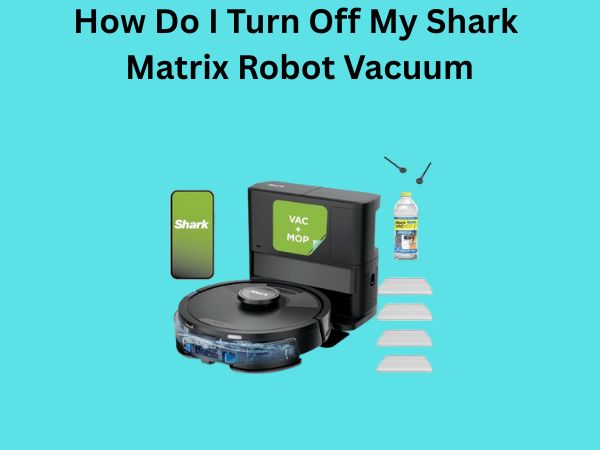
How Do I Turn Off My Shark Matrix Robot Vacuum? A Complete Guide
Let me start by saying this: if you’re standing in front of your Shark Matrix robot vacuum wondering how to shut the darn thing off, you’re not alone. I’ve been there, frantically pressing buttons while my robotic cleaning companion keeps bouncing around my living room like it’s got a mind of its own. The good news? Turning off your Shark Matrix is actually simpler than you might think, and I’m here to walk you through every single method.
Understanding Your Shark Matrix Control Methods
Think of your Shark Matrix robot vacuum like a smartphone—it has multiple ways to interact with it. You wouldn’t just hold down one button to turn off your phone in every situation, right? The same philosophy applies here. Your Shark Matrix gives you several options to power down, and each one serves a different purpose depending on what you’re trying to accomplish.
The device comes equipped with multiple control systems working in harmony. You’ve got physical buttons on the unit itself, a remote control if your model includes one, a dedicated mobile application, and the charging dock that acts as a command center of sorts. Understanding which method works best for your situation is half the battle.
The Power Button: Your First Line of Defense
Locating the Power Button on Your Device
The power button on your Shark Matrix robot vacuum is typically located on top of the unit. It’s usually a clearly marked button—sometimes with a power symbol that looks like a circle with a line at the top. On most models, you’ll find it near the center or slightly toward the back of the device. Take a moment right now to locate yours. It’s worth knowing where this button is before you actually need it.
How to Properly Press the Power Button
Here’s where people often go wrong: they assume a quick tap is enough. For most Shark Matrix models, you’ll want to hold down the power button for about two to three seconds. This isn’t a sprint—it’s a deliberate action. You should see some kind of response, whether that’s a beep, a light indicator changing, or the device stopping its cleaning pattern. Don’t worry if it takes a couple of seconds to register. The vacuum needs that moment to process your command and safely wind down its motors.
One thing I’ve learned is that gentle but firm pressure works best. You’re not trying to break the button, but you do want to make sure it fully engages. Press it like you mean it, but with respect for the technology you’re working with.
What Happens After You Press It
Once you’ve held the power button, your Shark Matrix will begin its shutdown sequence. The brush roll will stop spinning, the wheels will cease moving, and the device will enter a dormant state. You might hear a final beep or see a light flash—this is completely normal and indicates successful shutdown. The vacuum isn’t actually off entirely at this point; it’s more like hibernation mode, ready to wake up and work again whenever you need it.
Using the Mobile App to Shut Down Your Shark Matrix
Downloading and Setting Up the App
If you’ve got the Shark app installed on your smartphone, congratulations—you’ve unlocked one of the most convenient ways to control your vacuum. The app syncs with your Shark Matrix through your home WiFi network, creating a remote control system that works from anywhere in your house, or frankly, anywhere in the world if you’re connected to the internet.
Getting set up is straightforward. You download the app from either the Apple App Store or Google Play Store, create an account, and follow the prompts to add your device. Make sure your Shark Matrix is connected to your home WiFi network first—this is crucial. Without this connection, the app won’t be able to communicate with your vacuum.
Sending the Stop Command Through the App
Once you’ve got the app open and your vacuum is recognized, you’ll see a dashboard with various controls. Look for a button that says “Stop,” “Off,” or sometimes “Return to Dock.” Tapping this button sends a wireless signal to your Shark Matrix telling it to cease operations immediately. The response is usually instantaneous, making this method incredibly useful when you can’t physically reach the device.
What I love about the app method is the visual feedback. You can watch in real-time as your vacuum responds to your command. Some versions of the app even show you the cleaning map and history, so you know exactly what your vacuum has been doing while you’ve been away.
Advantages of Using the App Method
- Control from anywhere in your home or beyond
- Schedule cleaning sessions and automatic shutoffs
- Monitor battery levels and cleaning progress
- Receive notifications about your vacuum’s status
- No need to find the physical device to control it
The Dock Method: Let It Return Home
How the Charging Dock Works as a Power Station
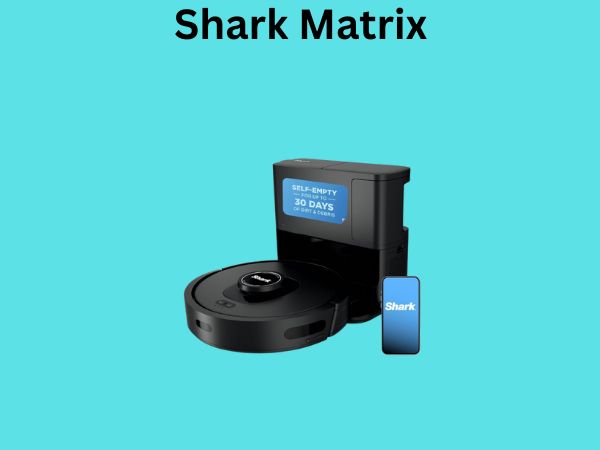
Your Shark Matrix charging dock isn’t just a place to charge—it’s also a natural place for the device to power down. When you send your vacuum back to its dock, it’s essentially going home to rest. This is probably one of the most natural and stress-free ways to shut down your device because the dock handles everything for you.
The dock communicates with your vacuum using infrared signals. When you press the “Return to Dock” or “Home” button on your remote or app, the vacuum receives this signal and navigates back to its docking station. Once it’s properly seated in the dock, the charging contacts align, and the device powers down while simultaneously charging its battery. It’s an elegant system, really.
Positioning Your Dock for Success
For the dock method to work reliably, your charging station needs to be positioned correctly. Place it on a hard, flat surface with at least 1.5 feet of clearance on both sides and 4 feet of clearance in front. If your dock is tucked into a tight corner or surrounded by obstacles, your vacuum might have trouble finding it or docking properly. Think of it like a parking space for your robot—it needs a clear path and adequate room to maneuver into position.
When the Vacuum Won’t Return to Dock
Sometimes your Shark Matrix gets a little stubborn. If it’s not returning to the dock when you command it to, a few things might be happening. The dock could be blocked, the infrared sensor on the vacuum might be dirty, or the battery could be too low for it to navigate back. In these cases, you’ll need to use one of the other shutdown methods I’ve mentioned—the physical power button or the app.
Pressing the Pause Button Versus Full Power Off
Understanding the Difference
Here’s something that confuses a lot of people: there’s a difference between pausing your vacuum and fully powering it off. The pause button puts your Shark Matrix into a temporary halt. The device stops moving and cleaning, but it’s still active, still using a tiny bit of battery power, and ready to resume work at a moment’s notice. It’s like pressing the pause button on your favorite song.
Full power off, on the other hand, is a complete shutdown. The device enters a dormant state where it’s consuming minimal power and is essentially sleeping until you wake it up again. If you’re planning to let your vacuum sit for an extended period, a full power off is better for battery health and overall device longevity.
When to Use Pause Instead of Off
Pause mode is perfect for those moments when you need a quick break. Maybe someone’s at the door, or you want to let the vacuum finish a specific room before pausing it. The beauty of pause is that you can resume cleaning right where it left off without the device needing to restart its mapping or navigation systems.
If you use pause and then don’t resume within a reasonable timeframe, the device might enter sleep mode automatically anyway. It’s smart enough to save battery when it senses prolonged inactivity.
Understanding Standby Mode
What Standby Mode Actually Means
Standby mode is that middle ground between full power on and completely off. Your Shark Matrix enters standby automatically after a period of inactivity, or you can manually trigger it depending on your model. In standby, the vacuum is consuming minimal power but remains responsive to your commands. It’s like your TV in standby mode—not actively running, but ready to turn on instantly when you press the remote.
Battery Drain in Standby Mode
One of the benefits of standby mode is that it preserves battery life much better than keeping your vacuum in pause mode. If you’re going to be away from home for a few days, letting your Shark Matrix slip into standby is wise. The battery drain is negligible compared to other operational modes. However, if you’re not planning to use it for weeks, a full power off is even better.
Troubleshooting When Your Vacuum Won’t Turn Off
The Power Button Isn’t Working
If you’re holding down the power button and nothing’s happening, don’t panic. First, check if your battery is completely depleted. A vacuum with zero battery can’t respond to commands, even though it might seem like it should. Plug it in for at least 30 minutes and try again.
If the battery isn’t the issue, try this: unplug the device from its dock or charger, wait 10 seconds, and plug it back in. This soft reset often resolves minor glitches that prevent the power button from working. Give the device a minute to fully reboot, then try the power button again.
The App Command Isn’t Registering
When the app isn’t communicating with your vacuum, WiFi connectivity is usually the culprit. Check that both your phone and the Shark Matrix are connected to the same WiFi network. Sometimes your vacuum can drop connection if it wanders too far from the router during operation. Try sending the return-to-dock command first to bring it closer to your router, which might restore the connection.
If that doesn’t work, restart the app completely. Close it out, wait a few seconds, and reopen it. You’d be surprised how often this simple act refreshes the connection and allows your commands to go through.
The Vacuum Keeps Running Despite Your Commands
This is frustrating, I know. If your vacuum is completely ignoring shutdown commands, it might be stuck in a cleaning cycle or experiencing a software hiccup. Try this: perform a complete restart by removing the battery (if your model allows it) for 30 seconds, then reinstall it. If you can’t remove the battery, hold the power button down for 10-15 seconds instead—longer than the normal shutdown sequence—to force a reboot.
Battery Considerations When Powering Down
How to Preserve Battery Life During Shutdown
When you’re powering down your Shark Matrix, you’re taking an important step toward preserving battery health. Here’s what you need to know: lithium batteries, which most robot vacuums use, don’t like being completely drained. If your vacuum’s battery hits zero percent, you’ve just damaged it slightly. Not catastrophically, but noticeably.
The ideal approach is to power down your vacuum when it’s at a reasonable battery level—somewhere between 20 and 80 percent is the sweet spot. If your vacuum has been running and the battery is getting low, send it back to dock to charge before you fully power it off. This practice will extend your battery’s lifespan significantly.
Long-Term Storage and Battery Care
If you’re planning to store your Shark Matrix for an extended period—say, a few months—charge it to about 50 percent capacity before powering it completely off. Store it in a cool, dry place away from extreme temperatures. Don’t leave it sitting in a hot garage or a freezing basement. Room temperature is perfect. This way, when you eventually power it back on, your battery will be in much better condition than if you’d left it fully charged or completely drained.
Cleaning Your Vacuum Before Storage
Pre-Shutdown Maintenance Steps
Before you power down your Shark Matrix, it’s a good idea to give it a quick once-over. Empty the dustbin—don’t leave it full for extended periods. A full dustbin can actually damage the filter and impact suction when you power the device back on. While you’re at it, wipe down the sensors with a soft, dry cloth. These sensors are what help your vacuum navigate, and dust buildup can impair their function.
Check the brush roll and wheels for any tangled hair or debris. This takes just a minute but can prevent operational issues the next time you use your vacuum. It’s preventative maintenance that pays dividends.
Filter and Component Care
If your Shark Matrix uses a washable filter, rinse it out with cool water before powering down and storing the device. Let the filter dry completely before reinstalling it. A damp filter stored in a powered-off vacuum can develop mold or mildew, which is definitely not what you want when you restart the device.
Safety Tips for Shutdown Procedures
Preventing Accidental Activation
Here’s something people don’t always consider: when you power off your Shark Matrix, make sure it’s in a safe location where it won’t suddenly power back on and cause problems. Don’t leave it precariously positioned on a raised surface or near stairs. A powered-off vacuum might seem harmless, but if someone accidentally activates it, you want to make sure it’s in a safe spot.
Keeping Children and Pets Safe
If you have young children or curious pets, make sure they understand that the robot vacuum is off-limits when it’s powered down. Even though it’s not moving, the brush roll and wheels can still cause minor injuries if activated unexpectedly. Teaching basic safety around your home automation devices is always a good idea.
Scheduling and Automatic Shutoffs
Using Scheduling Features in the App
One of the clever features of modern Shark Matrix models is the ability to schedule cleaning sessions directly through the app. You can set your vacuum to run at specific times of day, and more importantly, you can set it to automatically return to dock and power down after completing its cleaning cycle. This means you don’t have to manually shut anything off—the device does it automatically.
Setting this up is usually intuitive. Open the app, navigate to the scheduling section, and create a cleaning profile. Specify when you want the vacuum to run and for how long. When the cycle completes, the vacuum will return to dock and power down on its own. This is perfect for people who want a completely hands-off experience.
Customizing Your Shutdown Schedule
Some models allow you to customize not just when the vacuum runs, but how it powers down afterward. You might be able to choose between full shutdown, stan

![7 Best Black Friday Robot Vacuum And Mop [2026]](https://robotvacuumfact.com/wp-content/uploads/2026/08/7-best-black-friday-robot-vacuum-and-mop-2026-featured-768x432.jpg)