How to Clean an iLife Robot Vacuum: Step-by-Step
The easiest way to clean your iLife robot vacuum is to regularly empty its dustbin and wipe down its sensors and brushes. Keeping your iLife robot vacuum clean and well-maintained ensures it can effectively do its job. This guide will show you exactly how to perform a thorough cleaning to keep your floors spotless.
A clean robot vacuum performs better and lasts longer. Neglecting maintenance can lead to a clogged filter or tangled brushes, reducing its cleaning power. Many users find that a quick weekly cleanup makes a huge difference in performance and prevents bigger issues down the road.
- Empty the dustbin after every few uses.
- Clean the main brush and side brushes regularly.
- Wipe down sensors and the charging contacts.
- Replace the filter when it looks dirty or worn.
- Check for any debris caught in the wheels.
Let’s walk through exactly how to clean your iLife robot vacuum step by step, so you can get back to enjoying your clean home.
Keeping Your iLife Robot Vacuum in Top Shape
You want your iLife robot vacuum to perform its best, right? Regular cleaning is the key to a happy robot and spotless floors. It’s not a complicated process, and a little effort goes a long way. We’ll guide you through each step so you can get back to enjoying your home.
Your Step-by-Step iLife Robot Vacuum Cleaning Guide
Let’s get your robot vacuum looking and working like new. We’ll cover the essential parts you need to clean. This routine will help prevent breakdowns and keep it humming along for years.
Step 1: Emptying the Dustbin
This is the most frequent task. You should empty the dustbin after every few cleaning cycles. A full bin can’t pick up new dirt. It also makes the vacuum work harder than it needs to.
How to Remove and Empty the Dustbin
Locate the release button or latch on your iLife vacuum. It’s usually on the side or top. Gently press it and pull the dustbin out. You’ll find the opening to empty the contents into your trash can. Be sure to do this over a bin to avoid a mess.
Cleaning the Dustbin Itself
Once empty, you can give the dustbin a more thorough clean. Use a damp cloth to wipe down the inside and outside. Make sure it’s completely dry before putting it back in the vacuum. Some iLife models allow you to rinse the dustbin with water. Check your manual to be sure and always let it air dry fully.
Step 2: Cleaning and Replacing the Filter
Your vacuum’s filter traps dust and allergens. A clogged filter drastically reduces suction power. Keeping it clean ensures your iLife robot can effectively suck up debris.
Accessing the Filter
The filter is typically located inside or attached to the dustbin. You’ll usually see a small flap or tab to remove it. Gently pull it out. Many iLife vacuums use washable filters. Others require replacement.
Cleaning Washable Filters
If your filter is washable, rinse it under cool running water. You can use a soft brush to gently remove stubborn dust. Allow the filter to air dry completely before reinserting it. This can take up to 24 hours. Never put a damp filter back into your vacuum.
When to Replace Your Filter
Even washable filters wear out. If yours looks visibly damaged, torn, or is no longer effectively filtering dust, it’s time for a new one. Experts suggest replacing filters every 2-3 months, depending on usage (iLife Support Documentation). You can buy replacements directly from iLife or authorized retailers.
Step 3: Caring for the Brushes
The main brush and side brushes are your robot’s workhorses. They pick up dirt from your floors. Hair, string, and debris can easily get tangled, hindering their performance.
Cleaning the Main Brush
Flip your iLife robot over. You’ll see a brush guard or cover over the main brush. You might need a small tool or your fingers to release it. Carefully lift out the main brush. Use your fingers or scissors to remove any tangled hair or debris. Research shows that removing tangled debris can restore up to 30% of lost suction power. Rinse the brush if needed and dry thoroughly.
Cleaning the Side Brushes
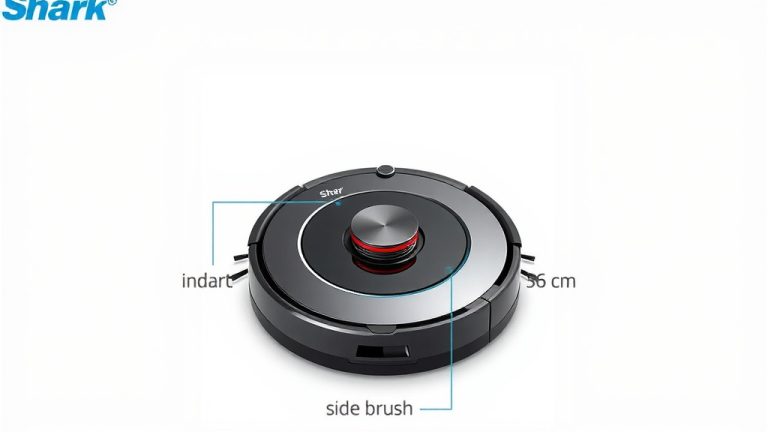
The smaller side brushes often sweep dirt towards the main brush. These can also get tangled. Gently pull off each side brush. Remove any stuck-on hair or threads. If a side brush is damaged, it’s best to replace it. iLife often provides replacements with your vacuum.
Step 4: Wiping Down Sensors and Charging Contacts
Sensors help your robot navigate and avoid obstacles. Dirty sensors can cause it to bump into things or get stuck. The charging contacts need to be clean for proper charging.
Locating and Cleaning Sensors
Your iLife robot has multiple sensors. Look for small black or clear “eyes” on the front, sides, and bottom of the unit. Use a clean, dry microfiber cloth to gently wipe each sensor. Avoid using cleaning sprays directly on the sensors. A slightly damp cloth can be used if necessary, but ensure it’s not wet.
Cleaning Charging Contacts
Find the metal charging contacts on both the robot and its charging dock. These can accumulate dust and grime. Use a dry cloth or a cotton swab to wipe them clean. Ensuring good contact means your robot will charge efficiently.
Step 5: Checking the Wheels
The wheels allow your robot to move. Debris can get lodged in them, preventing smooth movement.
Inspecting the Wheels
Carefully check the main drive wheels and the smaller caster wheel. Spin them by hand to ensure they move freely. Remove any hair or debris caught around the wheel axles. Sometimes, you might need to gently pry out stuck objects.
A Quick Maintenance Checklist
Here’s a handy checklist to keep your iLife robot running smoothly:
- Empty dustbin after every 2-3 cleaning sessions.
- Clean main brush and side brushes weekly.
- Wipe down all sensors with a dry cloth.
- Clean charging contacts on robot and dock monthly.
- Check wheels for debris before each use.
- Replace filter every 2-3 months or when dirty.
| Task | Frequency |
|---|---|
| Empty Dustbin | After every few uses |
| Clean Main & Side Brushes | Weekly |
| Clean Sensors & Charging Contacts | Monthly |
| Clean or Replace Filter | As needed, typically every 2-3 months |
| Check Wheels | Before each use |
Conclusion
You’ve now learned how to keep your iLife robot vacuum in tip-top shape. Regular maintenance, from emptying the dustbin to cleaning sensors and brushes, makes a big difference. Following these steps ensures your robot works efficiently and lasts longer. You’ll enjoy cleaner floors with less effort. Make a habit of these simple tasks, and your robot will thank you with stellar performance. Ready to get started? Grab a microfiber cloth and tackle that dustbin!
Frequently Asked Questions
How often should I clean my iLife robot vacuum?
For best performance, aim for a weekly cleaning of the brushes and sensors. The dustbin needs emptying after every few uses. Checking the wheels before each use is also a good habit. This regular attention prevents issues and keeps your floors spotless.
Can I wash the iLife robot vacuum’s filter?
Some iLife robot vacuums have washable filters, while others require replacement. Always check your user manual first. If washable, rinse it under cool water and let it air dry completely for at least 24 hours before reinserting. Never put a damp filter back in.
What should I do if my iLife robot vacuum isn’t charging?
Ensure the charging contacts on both the robot and the dock are clean. Dust and debris can prevent a good connection. Gently wipe them with a dry cloth or cotton swab. Also, confirm the charging dock is properly plugged in and the robot is aligned correctly.
Why does my iLife robot vacuum keep getting stuck?
Dirty sensors are often the culprit. They can’t properly detect obstacles. Make sure to wipe down all sensors with a clean, dry microfiber cloth. Also, check the wheels for any tangled debris that might be hindering movement.
How do I know when to replace parts like the filter or brushes?
Visually inspect your filter and brushes regularly. If the filter looks torn or less effective, replace it every 2-3 months. If brushes are visibly damaged, frayed, or can’t be fully cleaned from tangled debris, it’s time for new ones. Replacements are usually available from iLife or authorized sellers.