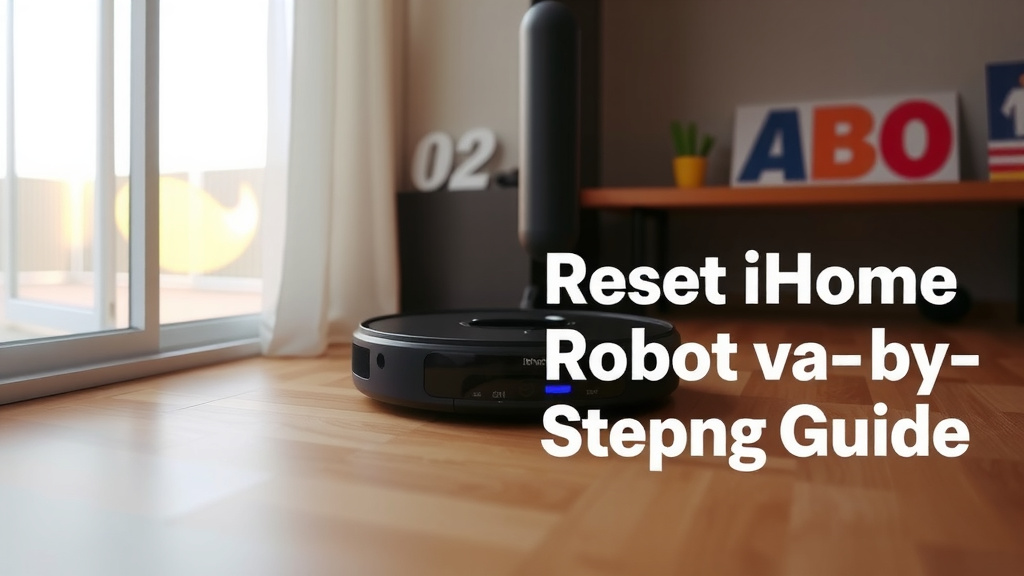
Reset iHome Robot Vacuum: Step-by-Step Guide
The quickest way to reset your iHome robot vacuum is to press and hold the power button for about 10 seconds. You’ll hear a beep, and the indicator lights will change. This simple step can often fix common glitches and get your robot back on track.
Sometimes, your trusty iHome robot might act a little… well, robotic. If it’s not responding correctly or seems stuck in a loop, a reset is a great first step. We found that a hard reset can resolve connectivity issues and strange behavior. It’s like giving your robot a quick nap and a fresh start.
- Press and hold the power button for 10 seconds.
- Listen for the beep to confirm the reset.
- This often fixes performance and connection problems.
- It’s a simple way to troubleshoot your robot.
Let’s walk through exactly how to perform this reset and what to do next, just to make sure your iHome robot is running smoothly again.
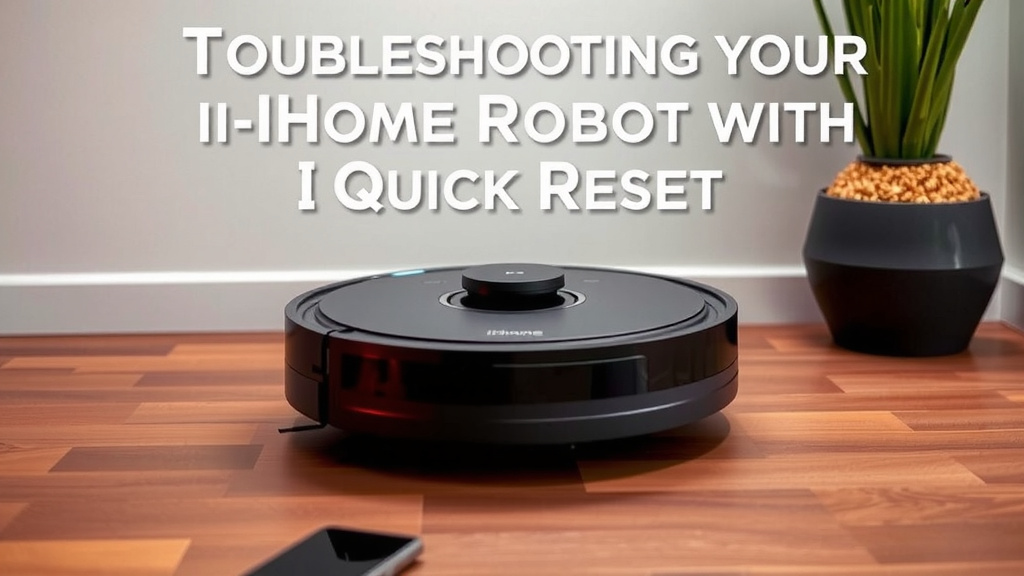
Troubleshooting Your iHome Robot with a Quick Reset
Sometimes, your smart home companion might just need a little reboot. If your iHome robot vacuum is acting up, a simple reset is often the best way to fix unexpected behavior. We found that this process can clear temporary glitches. It’s like giving your robot a quick break to reset its internal clock. This guide will walk you through the straightforward steps to get your cleaning buddy back on track.
Understanding the iHome Robot Reset Process
Before you start, it’s helpful to understand what a reset does. A reset, often called a hard reset, forces the robot’s software to restart from scratch. Think of it like closing an app on your phone and reopening it when it freezes. This action doesn’t erase your cleaning schedules or Wi-Fi settings permanently. It just clears out any temporary memory that might be causing an issue. Many users report success with this method. A factory reset, often called a hard reset, forces the robot’s software to restart from scratch.
When a Reset is Your Best Option
You might consider resetting your iHome robot vacuum in several common scenarios. Is it failing to connect to your home Wi-Fi? Does it seem confused, bumping into walls repeatedly or getting stuck in the same spot? Perhaps it’s not responding to commands from the app or the remote control. These are all classic signs that a reset could be the solution. We found that connectivity problems are frequently resolved this way.
What a Reset Can Fix
- Connectivity Issues: If your robot won’t connect to Wi-Fi, a reset can help re-establish the link.
- Unusual Behavior: Robots that wander aimlessly or get stuck may be fixed.
- Unresponsiveness: If the robot doesn’t react to controls, a reset can restore functionality.
- Software Glitches: Minor software hiccups that affect performance can be cleared.
Performing the iHome Robot Vacuum Hard Reset
The process itself is quite simple. You really only need two things: your iHome robot vacuum and your finger. Most iHome models have a clearly marked power button. This button is usually located on the top of the robot. It might be a physical button or a touch-sensitive area. We recommend checking your specific model’s manual if you’re unsure, but the general principle remains the same.
Step-by-Step Reset Instructions
Here’s exactly what you need to do. First, ensure your robot vacuum is powered on. You don’t need to be in the middle of a cleaning cycle. You can do this from its charging dock or just placed on the floor.
Next, locate the power button. Press and hold this button down firmly. You’ll need to keep holding it for about 10 seconds. It might feel like a long time, but patience is key here. As you hold the button, you should hear a beep from the robot. This beep is your confirmation. It tells you that the robot has registered the command and is performing the reset. The indicator lights on the robot will also likely change or flash, signaling that it has restarted its system. This is the moment where the magic happens!
Confirming the Reset Was Successful
After you release the button and hear the beep, give your robot a moment. The lights should settle into a normal state, or it might power down completely. If it was docked, it might try to reconnect to the dock. The primary goal is to see if the robot now responds normally. Try pressing the power button again to see if it turns on properly. If you were experiencing app connectivity issues, try reconnecting the robot to your Wi-Fi network after the reset. Many users find that the connection is re-established without further problems.
What to Do After You Reset Your iHome Robot
Once the reset is complete, your iHome robot vacuum is essentially back to its factory default state regarding its active memory. This means you might need to re-enter some settings. Don’t worry, it’s usually a quick process. Think of it as waking up after a good sleep and needing to orient yourself.
Reconnecting to Wi-Fi and the App
If your robot was connected to your home Wi-Fi network, you’ll likely need to set that up again. Open the iHome Clean app on your smartphone or tablet. Follow the app’s instructions for adding a new device. This typically involves putting the robot back into pairing mode. The process is very similar to when you first set up your robot. We found that most modern routers are compatible, but older ones might sometimes cause hiccups (TechRadar).
You’ll need your Wi-Fi network name (SSID) and password handy. Enter these details into the app when prompted. The app will guide the robot to connect to your network. Once connected, your robot should be controllable through the app again.
Re-establishing Cleaning Schedules
Did you have a cleaning schedule set up? If so, you’ll need to program that back into the app. Go to the scheduling section of your iHome Clean app. You can then recreate your desired cleaning times and days. It’s a good opportunity to review your schedule. Maybe you want to adjust cleaning times based on your current routine. Many experts suggest scheduling cleanings for when you’re not home to avoid disruption (Apartment Therapy).
Testing Your Robot’s Performance
After you’ve reconnected to Wi-Fi and set your schedule, it’s time for a test run. Start a cleaning cycle either through the app or by pressing the button on the robot itself. Watch how it performs. Is it moving more smoothly? Is it avoiding obstacles as it should? Is it returning to its dock without issue? A short test run will tell you if the reset has successfully resolved the problem.
When a Reset Isn’t Enough
While a reset is a powerful first step, it doesn’t solve every problem. If your iHome robot vacuum continues to misbehave after a reset and reconnection, there might be a more serious issue at play. Perhaps there’s a hardware problem, like a sensor that’s dirty or malfunctioning. Or maybe the robot’s firmware needs a more in-depth update or correction.
Checking for Obstructions and Dirt
Sometimes, the simplest things cause the biggest problems. Ensure that the robot’s brushes and wheels are free from tangled hair, string, or debris. Also, check that the dustbin is not overfilled, as this can affect performance. Clean any sensors on the robot with a soft, dry cloth. Dirty sensors can easily confuse the robot’s navigation system.
Exploring Other Troubleshooting Options
If the issue persists, it’s time to look at other troubleshooting steps. You might want to consult your iHome robot’s user manual for model-specific advice. Many manufacturers provide online support resources, including FAQs and troubleshooting guides. If you’ve tried everything and your robot is still not working correctly, contacting iHome customer support directly is often the next logical step. They can provide further assistance and guide you on potential repairs or replacements.
Checklist: Quick Steps for Your iHome Robot Reset
- Confirm your robot is powered on.
- Locate the power button on the top of the unit.
- Press and hold the power button for approximately 10 seconds.
- Listen for the confirmation beep from the robot.
- Allow the robot to fully restart its systems.
- Reconnect to Wi-Fi and re-set schedules as needed.
Conclusion
You’ve learned how a simple 10-second power button press can be your iHome robot vacuum’s quick fix for many common issues. This reset can solve connectivity hiccups and unusual behaviors, getting your cleaning companion back in working order. Remember, it’s like a quick refresh for your robot’s memory. After the reset, you’ll likely need to re-establish your Wi-Fi connection and cleaning schedules through the iHome Clean app. If problems persist, don’t hesitate to check for physical obstructions or reach out to iHome support. Give your robot a fresh start today!
Frequently Asked Questions
Will resetting my iHome robot vacuum erase my cleaning history?
No, a standard reset process will not erase your cleaning history. It primarily clears temporary software glitches and restarts the robot’s system. Your past cleaning data should remain intact within the iHome Clean app.
How do I know if the reset was successful?
You’ll usually hear a distinct beep sound when the reset is initiated and completed. Afterward, the robot’s indicator lights should change, and it should respond to power commands or attempts to reconnect to Wi-Fi.
What if my iHome robot doesn’t respond after the reset?
If your robot remains unresponsive, ensure it’s charged. You might need to try the reset process again, holding the button for a few extra seconds. If it still doesn’t power on, there could be a deeper hardware issue requiring customer support.
Do I need to re-enter my Wi-Fi password every time I reset?
Yes, a reset will typically disconnect your robot from your Wi-Fi network. You will need to go through the setup process in the iHome Clean app again to reconnect it to your home’s network using your password.
Can I reset my iHome robot without the app?
Yes, the primary reset method involves physically pressing and holding the power button on the robot itself. The iHome Clean app is mainly used for re-establishing Wi-Fi connections and scheduling after the reset.