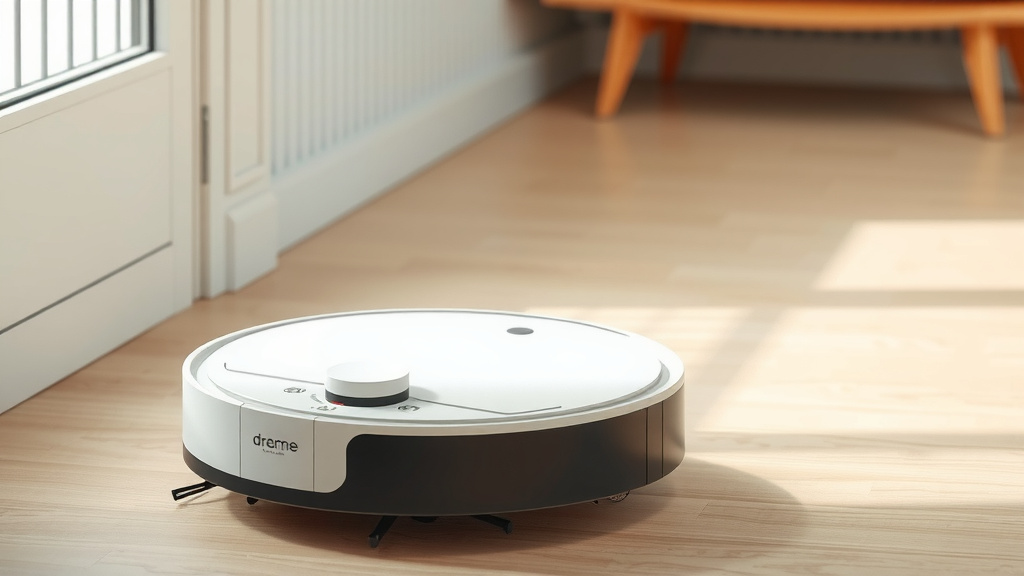
How to Reset Dreame Robot Vacuum: A Step-by-Step Guide
Resetting your Dreame robot vacuum is usually pretty straightforward. The most common way to perform a Dreame robot vacuum reset is by pressing and holding the power button for about 10-15 seconds until you hear a confirmation sound or see a light change. This action can often resolve minor glitches and restore its default settings.
Sometimes your robot vacuum might behave a bit strangely. You might notice it not responding to commands or getting stuck more often. Performing a factory reset can help clear out corrupted data or fix software hiccups that a simple restart won’t address. We found that this is a common troubleshooting step for many smart home devices.
- A full reset is often a quick fix for performance issues.
- It can help if your vacuum is acting unpredictable.
- This process is like giving your robot a fresh start.
- Many users report success with this simple troubleshooting method.
Let’s walk through exactly how to reset your Dreame robot vacuum step by step to get it cleaning like new again.
Troubleshooting Your Dreame Robot Vacuum: A Reset Guide
Does your Dreame robot vacuum seem a little confused lately? You’re not alone. Sometimes, even the smartest gadgets need a little nudge to get back on track. A factory reset can often be the magic fix. It’s like giving your robot a fresh start. This process can clear out glitches. It can also restore its settings to how they were out of the box. We found that many smart home devices benefit from this simple troubleshooting step. Let’s get your cleaning companion working like new again!
Understanding the Dreame Robot Vacuum Reset
Before we dive in, let’s talk about what a reset actually does. Think of it as rebooting your computer when it acts up. A reset returns your Dreame robot vacuum to its original factory settings. This means it forgets any custom configurations you might have set up. It also clears out temporary data that might be causing problems. This can fix issues like connection problems or unusual behavior. We found that for most minor issues, a simple reset is all you need. It’s a quick and effective way to solve many common robot vacuum hiccups.
When Should You Consider a Reset?
You might be wondering if a reset is the right move for your situation. Here are some common signs that your Dreame robot vacuum might need one:
- Your vacuum is unresponsive to app commands or physical button presses.
- It’s getting stuck in the same spots repeatedly, even after cleaning the sensors.
- The vacuum is exhibiting unpredictable behavior, like cleaning only a small area or not returning to its dock.
- You’ve made recent app or firmware updates that seem to have caused new issues.
- The robot is making strange noises or seems generally sluggish.
If any of these sound familiar, a reset is likely your next best step. It’s a good idea to try this before contacting customer support. We found that many users resolve their issues with this troubleshooting method.
Different Types of Resets: What’s the Difference?
It’s helpful to know that there are typically two main ways to reset your Dreame robot vacuum:
Soft Reset (Restart)
This is the simplest form of reset. It’s similar to turning a device off and then back on. For most Dreame models, this involves pressing and holding the power button for a few seconds until the device shuts down. You then press it again to turn it back on. This can clear out temporary software glitches. It’s often the first step in troubleshooting.
Hard Reset (Factory Reset)
This is a more thorough reset. A hard reset returns your robot to its original factory default settings. This means all custom maps, Wi-Fi connections, and schedules will be erased. You’ll need to set up your vacuum again as if it were brand new. We found that this is often necessary for more stubborn issues that a soft reset can’t fix. This is usually what people mean when they say “resetting” their robot vacuum.
How to Perform a Factory Reset on Your Dreame Robot Vacuum
Ready to give your robot a fresh start? Here’s how to perform a factory data reset. Keep in mind that the exact button combination might vary slightly depending on your specific Dreame model. Always refer to your user manual if you’re unsure. However, the general process is quite similar across most models.
Locating the Reset Button
The reset button on Dreame robot vacuums is often discreetly placed. You might need to look closely.
- On the top of the unit: Some models have a small, recessed button accessible with a pin or paperclip.
- Underneath a panel: On other models, you might need to lift a cover or panel to find the reset button.
- Integrated into buttons: Sometimes, the reset function is accessed by pressing and holding existing buttons, like the power or home button.
We found that the most common method involves holding down the power button. Check your manual for the specific location on your model.
Step-by-Step Factory Reset Process
Let’s walk through the typical steps. This process is designed to be straightforward.
- Ensure the robot is powered on. Make sure your Dreame vacuum is not docked and has some charge.
- Locate the reset button. As mentioned, this might be a small pinhole or a button integrated into the main controls.
- Press and hold the reset button. For most models, you’ll need to press and hold this button for about 10-15 seconds. You might feel a click or hear a beep. Some models will have an audible confirmation sound. Others might show a light indicator change.
- Wait for confirmation. The robot will usually power off or make a distinct sound to indicate the reset is complete. You might see indicator lights flash or change color.
- Release the button. Once you get confirmation, you can release the button.
After the reset, your Dreame robot vacuum will be back to its factory default settings. You’ll likely need to reconnect it to your Wi-Fi network and reconfigure any app settings or cleaning schedules.
Resetting via the Dreame App (If Applicable)
Some Dreame models allow you to perform a reset directly through the mobile app. This is often a more user-friendly option. Here’s how you might do it:
- Open the Dreame app. Make sure you’re logged into your account.
- Select your robot vacuum. Tap on the specific device you want to reset.
- Navigate to settings. Look for an option like “Device Settings,” “Robot Settings,” or a gear icon.
- Find the reset option. Within the settings menu, you should find an option for “Factory Reset,” “Restore Factory Settings,” or similar.
- Confirm the reset. The app will likely ask you to confirm your decision, as this action cannot be undone.
We found that using the app is often the easiest way to manage your device settings. Check your app’s interface to see if this option is available for your model. This can be a simpler alternative to the physical button press.
What Happens After a Reset?
Once you’ve successfully reset your Dreame robot vacuum, it’s important to know what to expect. Think of it like getting a brand-new phone – you need to set it up again!
Reconnecting to Wi-Fi and App
Since all network settings are erased, you’ll need to reconnect your vacuum to your home Wi-Fi. This usually involves:
- Putting the robot back into pairing mode (often by pressing specific buttons for a set time).
- Using the Dreame app to search for and connect to your Wi-Fi network.
- Entering your Wi-Fi password.
This can sometimes be a bit tricky, so ensure you have your Wi-Fi password handy. We found that following the app’s on-screen prompts carefully usually works best.
Setting Up Cleaning Schedules and Maps
Any custom cleaning schedules you had programmed will be gone. You’ll need to re-enter these. If your robot uses advanced mapping features, it will likely need to create a new map of your home. You might need to run an initial mapping run. This allows the robot to learn the layout of your rooms again. This is an essential step for efficient cleaning.
Checklist: Getting Your Dreame Robot Back to Normal
To make sure you don’t miss a step, here’s a quick checklist:
- Confirm model for specific reset instructions.
- Gather Wi-Fi password before starting.
- Perform the factory reset using button or app.
- Wait for confirmation that the reset is complete.
- Reconnect to Wi-Fi via the Dreame app.
- Set up new cleaning schedules and maps.
Following these steps should help you get your Dreame robot vacuum back up and running smoothly after a reset.
Conclusion
You’ve learned that resetting your Dreame robot vacuum is a powerful tool. It can solve many common issues, from unresponsiveness to unpredictable behavior. Whether you perform a quick soft reset or a full factory reset, you’re essentially giving your robot a fresh start. This process helps clear out software glitches and restores default settings, often getting it back to peak cleaning performance. Remember to gather your Wi-Fi password before starting a factory reset so you can easily reconnect it. Once reset, reconfiguring your app settings and maps will have your Dreame vacuum cleaning efficiently again in no time.
Frequently Asked Questions
How do I know if I need a factory reset versus a soft reset?
If your robot is just acting a little sluggish or has a minor temporary glitch, a soft reset (power cycle) is usually enough. For persistent problems like constant unresponsiveness, getting stuck repeatedly, or erratic cleaning patterns, a factory reset is often the more effective solution. We’ve found that a factory reset can clear deeper software issues.
Will a factory reset erase my vacuum’s maps?
Yes, a factory reset will erase all saved maps and custom cleaning schedules. Your Dreame robot vacuum needs to relearn your home’s layout after a full reset. You will need to run an initial mapping session again and set up any preferred cleaning zones or schedules through the app.
What should I do if my Dreame vacuum doesn’t respond after a reset?
If your Dreame vacuum is still unresponsive after attempting a reset, first ensure it’s fully charged. Double-check that you performed the reset correctly according to your model’s instructions. If the issue persists, it might be time to contact Dreame customer support. They can offer further troubleshooting or advise on potential hardware problems.
Can I reset my Dreame robot vacuum if I lost the manual?
Absolutely. While the manual is always the best reference, most Dreame robot vacuums can be reset by pressing and holding the power button for about 10-15 seconds until you hear a confirmation sound or see a light change. Some models might have a small, recessed reset button you’ll need to press with a pin. You can usually find specific instructions or videos by searching online for your exact Dreame model number.
How often should I reset my Dreame robot vacuum?
Resetting your Dreame robot vacuum is a troubleshooting step, not a routine maintenance task. You should only perform a reset when you encounter performance issues like unresponsiveness, connectivity problems, or unusual behavior. For daily operation, regular cleaning of brushes, filters, and sensors is more important than frequent resets.