How to Reset Your eufy Robot Vacuum: Simple Steps
Resetting your eufy robot vacuum is usually straightforward. Most models can be reset by holding down the power button for about 5-10 seconds until the device powers off. This action often clears temporary glitches and restarts the system.
Sometimes, your eufy might act a little strange. It could be a mapping error, a connection issue, or just general stubbornness. A reset can be a quick fix for many common problems, helping to restore its normal operations without needing complex troubleshooting.
- Resetting your eufy is simple.
- Hold the power button for 5-10 seconds.
- This can fix many common issues.
- It’s a good first step for troubleshooting.
Let’s walk through exactly how to get your eufy back on track with a simple reset.
So, your eufy robot vacuum seems a bit off. Maybe it’s bumping into walls more than usual, or perhaps it’s stuck in a loop. Don’t worry, you’re not alone! It happens to the best of us, and often, a simple reset is all it needs to get back to its cleaning duties. Think of it like giving your robot a quick nap and a fresh start.
Giving Your eufy a Quick Reboot
Resetting your eufy robot vacuum is often the first and easiest step to take when it’s not performing as expected. It’s a process that can fix a surprising number of minor glitches. We’ve found that this simple action can resolve issues related to connectivity, mapping, and even unusual operational behavior.
When Should You Consider a Reset?
You might be wondering if a reset is the right move for your situation. Here are some common signs that suggest a reset could help:
- Your eufy is frequently getting stuck.
- It’s not connecting to your Wi-Fi network.
- The cleaning patterns seem erratic or repetitive.
- It’s making strange noises or not responding to commands.
- The app shows errors that aren’t easily resolved.
- It seems to be forgetting its map or creating new ones constantly.
These are all good indicators that your robot might just need a little digital shake-up. It’s like restarting your computer when it freezes – a common and often effective solution.
Understanding the Two Types of Resets
It’s important to know that there are generally two levels of reset you can perform on your eufy vacuum. Each has a different purpose and effect.
The Soft Reset (Power Cycle)
This is the most common and simplest reset. It’s essentially turning the vacuum off and then back on again. It clears out temporary memory and can fix minor software hiccups without erasing any stored data like maps or schedules. This is often what people mean when they ask “how to reset eufy robot vacuum.”
The Factory Reset (Hard Reset)
This is a more drastic step. A factory reset returns your eufy vacuum to its original out-of-the-box settings. It will erase all saved maps, Wi-Fi settings, scheduled cleanings, and any other personalized configurations. You’ll need to set it up again as if it were brand new. We usually recommend this only as a last resort when other troubleshooting steps haven’t worked.
Performing a Soft Reset on Your eufy
For most everyday issues, a soft reset is your go-to solution. It’s quick, easy, and doesn’t require you to reconfigure everything afterward. This is often sufficient to get your robot back on track.
The Step-by-Step Process
Here’s how you can perform a soft reset on your eufy robot vacuum:
- Locate the Power Button: Find the physical power button on your eufy vacuum. It’s usually on the top of the unit.
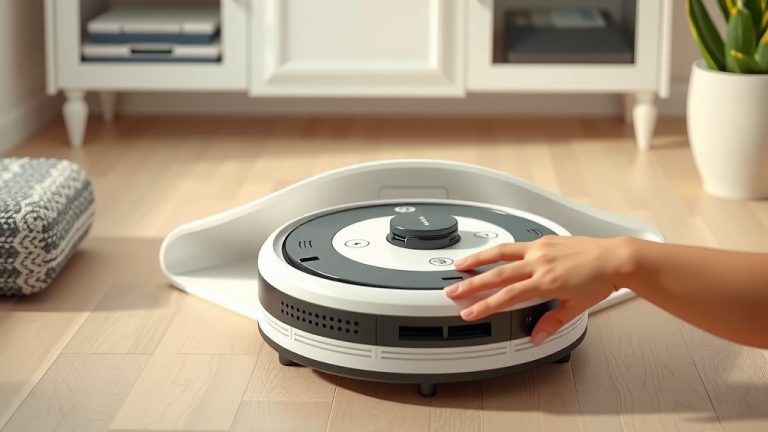
- Press and Hold: Press and hold this power button down. You’ll need to keep it held for about 5 to 10 seconds.
- Listen for Confirmation: You should hear a beep or notice the lights on the vacuum change. This indicates it’s powering off.
- Wait a Moment: Let the vacuum sit powered off for about 30 seconds. This gives the system a chance to fully clear its temporary memory.
- Power On Again: Press the power button once more to turn your eufy back on.
- Observe and Test: Once it boots up, try sending it on a cleaning cycle or using the app to see if the issue is resolved.
We found that this simple power cycle can resolve issues with connectivity drops or minor unresponsiveness. It’s a **digital deep breath** for your robot.
What a Soft Reset Typically Fixes
A soft reset is effective for a range of common problems:
- Temporary software glitches: If the vacuum seems confused or stuck.
- Wi-Fi connection issues: Sometimes a restart helps it re-establish a stable connection.
- App communication problems: If the app can’t find or control the vacuum.
- Minor mapping errors: Small inconsistencies in its understanding of your home.
It’s like giving your robot a quick system refresh, clearing out any digital cobwebs.
When and How to Perform a Factory Reset
If a soft reset doesn’t do the trick, or if you’re experiencing persistent, serious problems, a factory reset might be necessary. This is a more thorough solution that clears out deeper software issues by returning the device to its original state. Many users find this resolves complex mapping or connectivity problems. If a soft reset doesn’t work, a factory reset might be necessary; learn more about this process.
Steps for a Factory Reset
The exact method for a factory reset can vary slightly by eufy model, so it’s always a good idea to check your specific user manual. However, most models follow a similar pattern:
Method 1: Via the Device Buttons
Some eufy models have a specific button combination to initiate a factory reset.
- Power off the vacuum.
- Press and hold specific buttons: This might involve holding the power button and another button (like the home button or a spot clean button) simultaneously for an extended period, often 10-20 seconds.
- Look for a reset indicator: You might hear a specific sound or see the lights flash in a particular way to confirm the reset is happening.
- Release the buttons: Once you get confirmation, release the buttons.
- Wait for reboot: The vacuum will likely restart.
Method 2: Via the eufy App (If Applicable)
For many newer models, you can initiate a factory reset directly through the eufy app. This is often the easiest method if your vacuum is still somewhat functional.
- Open the eufy Home App.
- Select your robot vacuum.
- Navigate to Device Settings: Look for a gear icon or a “Settings” option.
- Find “About Device” or “Reset”: Scroll down through the settings menu.
- Select “Factory Reset” or “Restore Defaults”: You’ll likely see an option to reset the device.
- Confirm your choice: The app will warn you that this action cannot be undone and will erase all data. Confirm to proceed.
Research suggests that a factory reset can resolve issues that stem from corrupted firmware or persistent software conflicts (Google Support).
What a Factory Reset Wipes
Remember, a factory reset is like a clean slate. It will remove:
- All saved home maps.
- Wi-Fi network configurations.
- Scheduled cleaning routines.
- Paired user accounts (if applicable).
You’ll need to reconnect your eufy to your Wi-Fi and set up your cleaning preferences again. It’s a bit of work, but it can be a lifesaver for stubborn problems.
A Quick Checklist for Troubleshooting
Before you decide on a reset, or right after, run through this quick checklist. Sometimes the solution is simpler than you think!
- Is the dustbin full? Empty it first.
- Are the brushes tangled? Clean them.
- Are the sensors dirty? Wipe them clean.
- Is the vacuum on its charging base? Ensure it’s properly docked.
- Has the app been updated recently? Check for app updates.
Addressing these basic maintenance points can often save you the trouble of a reset.
Conclusion
You’ve learned that resetting your eufy robot vacuum is a powerful tool for tackling common performance issues. Whether it’s a simple soft reset to clear temporary glitches or a more thorough factory reset for persistent problems, you now have the steps to get your eufy working smoothly again. Remember to perform basic maintenance like cleaning brushes and sensors first, as these simple checks can often resolve issues. If you’ve tried these steps and your eufy is still misbehaving, it might be time to consult your user manual or reach out to eufy support for further assistance.
Frequently Asked Questions
Will a soft reset erase my eufy’s map?
No, a soft reset, also known as a power cycle, will not erase your eufy robot vacuum’s saved maps or cleaning schedules. This type of reset only clears temporary memory, similar to restarting your computer.
How do I know if I need a factory reset instead of a soft reset?
You should consider a factory reset if a soft reset doesn’t resolve your issue, or if you’re experiencing persistent problems like frequent connection drops, major mapping errors, or the vacuum not responding at all. A factory reset is a last resort.
What should I do after performing a factory reset?
After a factory reset, you’ll need to set up your eufy robot vacuum again from scratch. This includes reconnecting it to your Wi-Fi network, re-establishing any smart home integrations, and setting up new cleaning schedules and map preferences through the app.
Can I factory reset my eufy using just the buttons on the device?
Yes, many eufy models allow for a factory reset using a specific combination of physical buttons on the vacuum itself. This process usually involves pressing and holding certain buttons for an extended period until you see an indicator light or hear a confirmation sound.
My eufy is still not cleaning properly after a reset. What else could it be?
If a reset doesn’t fix your eufy’s cleaning performance, check for physical obstructions like tangled brushes or debris in the wheels. Ensure the sensors are clean and that the dustbin is properly seated. Sometimes, a firmware update might also be needed, which you can usually check for in the eufy app.