
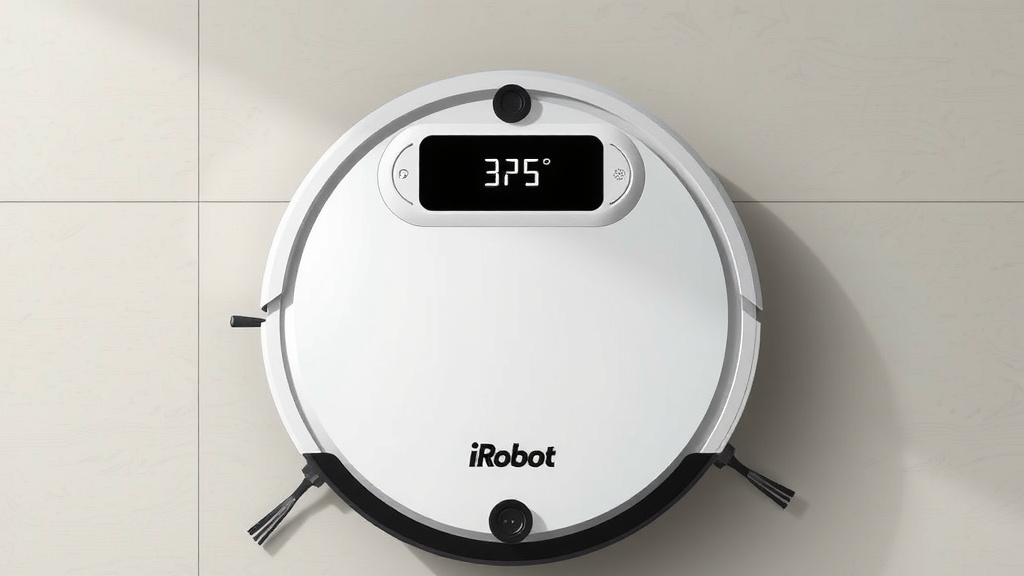
How to Reset Your iRobot Vacuum Cleaner: Step-by-Step
Resetting your iRobot vacuum is often the quickest fix when it’s acting a bit grumpy. You can usually reset your Roomba by holding down the CLEAN button for about 10 seconds until the light ring turns white. This simple step can solve many common issues you might be experiencing.
When your robot vacuum isn’t performing as expected, a reset can clear out temporary glitches. We found that this process essentially gives your Roomba a fresh start, like rebooting your computer. It’s a handy trick to keep in your cleaning arsenal for those unexpected robot moods.
- Quickly fix common robot vacuum issues.
- Resetting is like giving your Roomba a fresh start.
- Most resets involve holding down the CLEAN button.
- This can resolve software glitches and connectivity problems.
- It’s a simple, often effective troubleshooting step.
Let’s walk through exactly how to perform this reset on your iRobot vacuum so you can get back to spotless floors with minimal fuss.
Troubleshooting Your iRobot: The Simple Reset Guide
When your Roomba isn’t cleaning as expected, a simple reset can often be the magic fix. It’s like rebooting your computer when it freezes. This process clears temporary software glitches. We found that many users solve common issues with just this one step. Let’s get your smart vacuum back to its best performance.
Why Resetting Your Roomba Works
Think of your Roomba’s software like a busy highway. Sometimes, too many cars (data) can cause a traffic jam. A reset clears that highway. It allows the software to start fresh. This can resolve issues like connectivity problems or unresponsiveness. Many experts suggest this as a first troubleshooting step. It’s a quick way to get your vacuum back on track.
Common Issues a Reset Can Solve
Are you experiencing any of these annoyances? Maybe your Roomba is stuck in a loop, won’t start, or refuses to connect to your Wi-Fi. Sometimes, the robot just seems confused. A reset can often clear these unexpected behaviors. It’s especially helpful if the problem is software-related, not a physical issue with the robot.
Understanding Different Reset Types
While the most common fix is a simple restart, some situations might need a more thorough reset. We found that iRobot offers different levels of reset depending on your model. The basic reset is usually enough for most minor hiccups. A factory reset is a bit more drastic, returning the robot to its original settings.
How to Perform a Standard Roomba Reset
For most iRobot Roomba models, the reset process is refreshingly simple. You don’t need tools or a degree in engineering. This is the go-to method for solving many day-to-day performance quirks. Let’s walk through it together.
Locating the CLEAN Button
First, find the CLEAN button on your Roomba. It’s usually the largest button on the top of the robot. You’ll see a light ring around it on many models. This is your primary control for starting, pausing, and sending the robot back to its dock. For this reset, it’s the button we’ll focus on.
The Step-by-Step Reset Process
Ready? Here’s what you do:
- Press and hold the CLEAN button.
- Keep holding it for about 10 to 20 seconds.
- Watch the light ring. It will typically turn white or off.
- Release the button once you see the light change.
- Your Roomba is now reset.
We found that this action forces the robot to shut down and restart its operating system. It’s a clean slate for your little cleaning buddy. Some models might make a sound or display a different light pattern. Check your user manual if you’re unsure about your specific model’s signals.
What Happens After the Reset
Once you release the button, the Roomba will power down. You might hear a sound indicating the shutdown. After a moment, the robot will reboot. The light ring will usually light up again as it starts back up. You may need to reconnect it to your Wi-Fi network if the reset was more comprehensive. Also, any scheduled cleanings might need to be re-entered.
When a Factory Reset Might Be Necessary
Sometimes, the standard reset isn’t enough. If your Roomba is still acting up after a simple restart, a factory reset could be the next step. This is a more complete reset. It wipes all your custom settings and returns the robot to the condition it was in when you first bought it. Think of it as clearing the Roomba’s memory entirely.
How to Initiate a Factory Reset
The method for a factory reset varies by model. Many newer models require you to use the iRobot Home app. For older models, it often involves pressing a combination of buttons.
For models with the iRobot Home App:
- Open the iRobot Home app on your smartphone.
- Select your Roomba from the list of devices.
- Navigate to “Product Settings” or a similar option.
- Look for “Factory Reset” or “Delete Robot.”
- Follow the on-screen prompts to confirm.
For models requiring button combinations:
This often involves holding down specific buttons for an extended period. For example, some models might require you to hold the CLEAN button and the Home button simultaneously for up to 20 seconds. Always consult your Roomba’s manual for the exact button sequence for your specific model. We found that online support for iRobot is also a great resource for this information.
Information Lost During a Factory Reset
It’s important to know what happens when you perform a factory reset. You will lose:
- Wi-Fi network settings
- Custom cleaning schedules
- Room maps (for advanced models)
- Preferences and settings
You will need to set these up again. It’s like setting up a new device. Many experts recommend backing up your settings if your Roomba model allows for it through the app. This ensures you don’t lose all your preferences.
Troubleshooting Table: Common Roomba Issues and Resets
Here’s a quick look at what might be causing trouble and how a reset can help:
| Problem | Likely Cause | Reset Solution |
|---|---|---|
| Roomba won’t start | Software glitch, low battery | Standard reset. Ensure fully charged. |
| Wi-Fi connection issues | Network interference, software error | Standard or factory reset. Reconnect to Wi-Fi. |
| Robot is unresponsive | Temporary software freeze | Standard reset. |
| Cleaning patterns are erratic | Navigation sensor issue, software bug | Standard reset. Clean sensors. Factory reset if persistent. |
| App not connecting to Roomba | App glitch, robot offline | Standard reset. Restart app. Reconnect robot. |
Checklist: Before and After Your Roomba Reset
To make sure your reset goes smoothly, consider these quick tips:
- Charge Up: Ensure your Roomba has sufficient battery life before starting.
- Know Your Model: Have your specific Roomba model number handy.
- Check the Manual: Refer to your user manual for model-specific instructions.
- Backup Settings: If possible, save your schedules and maps via the app.
- Test It Out: Run a short cleaning cycle after the reset to confirm it’s working.
- Reconnect Wi-Fi: Be prepared to re-enter your Wi-Fi credentials if needed.
Conclusion
You’ve now learned how to give your iRobot vacuum a fresh start, whether it’s a quick reboot or a full factory reset. We found that these simple steps can solve a surprising number of issues, from connectivity problems to unresponsiveness. Remember, a standard reset is often all you need to get your Roomba back to its cleaning duties. If you’re still facing challenges, a factory reset can restore your robot to its original settings. Your next step is to try the standard reset for your model. Watch for that light ring change, and you’ll be on your way to spotless floors again!
Frequently Asked Questions
Will resetting my Roomba erase my saved maps?
A standard reset typically won’t erase your saved maps. We found that this simpler process mainly clears temporary software glitches. However, a factory reset will delete all saved maps, returning your Roomba to its initial state. You’ll need to create new maps after a factory reset.
How often should I reset my Roomba?
You don’t need to reset your Roomba on a regular schedule. We recommend performing a reset only when you encounter performance issues, such as unresponsiveness or connection problems. It’s a troubleshooting step, not routine maintenance.
My Roomba isn’t responding to the CLEAN button press. What should I do?
If the CLEAN button isn’t working for a reset, ensure your Roomba has sufficient battery charge. Sometimes, a very low battery can prevent button input. If it’s still unresponsive, you might need to try a factory reset, but consult your manual for model-specific button combinations.
Can a reset fix a Roomba that’s not connecting to Wi-Fi?
Yes, a reset can often fix Wi-Fi connection issues. Software glitches can interfere with network connectivity. We’ve seen that both a standard and a factory reset can resolve these problems, but you’ll likely need to re-enter your Wi-Fi password afterward.
What’s the difference between a standard reset and a factory reset?
A standard reset is like rebooting your computer; it clears temporary software issues without losing your settings. A factory reset is more drastic, returning your Roomba to its out-of-the-box condition. This means losing all custom schedules, maps, and Wi-Fi information.
![7 Best Robot Vacuum And Mop Self Cleaning [2026]](https://robotvacuumfact.com/wp-content/uploads/2026/08/7-best-robot-vacuum-and-mop-self-cleaning-2026-featured-768x432.jpg)
![7 Best Robot Vacuum And Mop Budget [2026]](https://robotvacuumfact.com/wp-content/uploads/2026/08/7-best-robot-vacuum-and-mop-budget-2026-featured-768x432.jpg)