How to Turn On Your Robot Vacuum: Simple Steps
Turning on your robot vacuum is usually as simple as pressing a power button or using its accompanying mobile app. Most models have a clear, visible button on the top or side for manual activation. If you prefer using technology, the app often provides a convenient way to start, stop, and schedule cleanings with just a few taps. Getting your smart cleaner running is typically a quick and straightforward process.
Before you hit that button, it’s wise to ensure your robot vacuum is properly docked and has sufficient battery charge. Many robot vacuums are designed to automatically return to their charging base when power is low. Checking the battery level via the app or indicator lights ensures your cleaning cycle won’t be cut short. A little preparation means a more thorough clean for your home.
- Press the power button on the robot or use the app.
- Ensure the robot is on its charging dock.
- Check the battery indicator for a full charge.
- Some models allow scheduling through the app.
Let’s walk through exactly how to get your robot vacuum powered up and ready to tackle that dust. We’ve researched the common methods and found a few helpful tips.
You’ve got your shiny new robot vacuum, and the excitement is real! No more dragging out the old upright or wrestling with a cord. But before you can enjoy those hands-free cleaning sessions, you need to get it powered up. We’ve researched the most common methods, and it’s usually much simpler than you might think. Let’s get that little helper ready to roll!
Getting Your Robot Vacuum Started
Turning on your robot vacuum is the first step to a cleaner home. Most models have straightforward activation methods. You’ll typically use a physical button or a smartphone app. We found that understanding these basic steps ensures you can begin cleaning right away.
The Classic Button Method
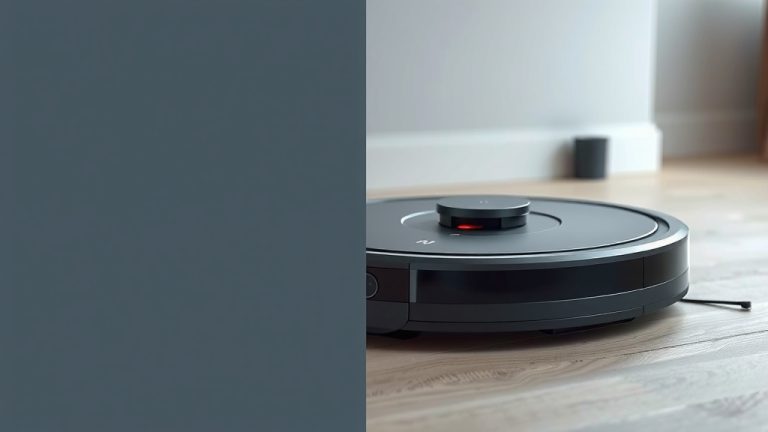
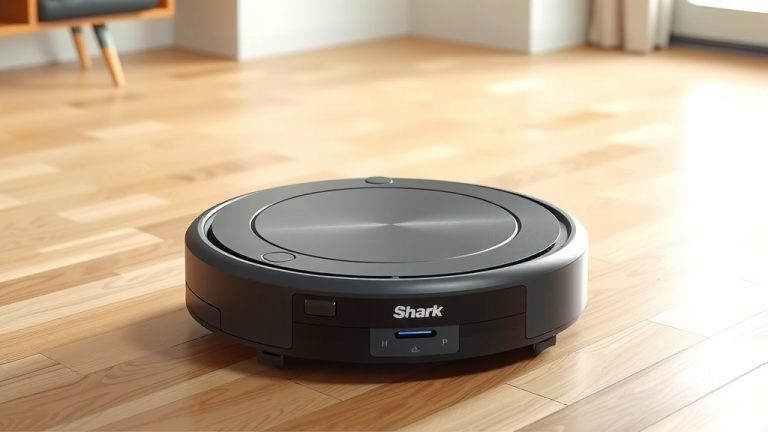
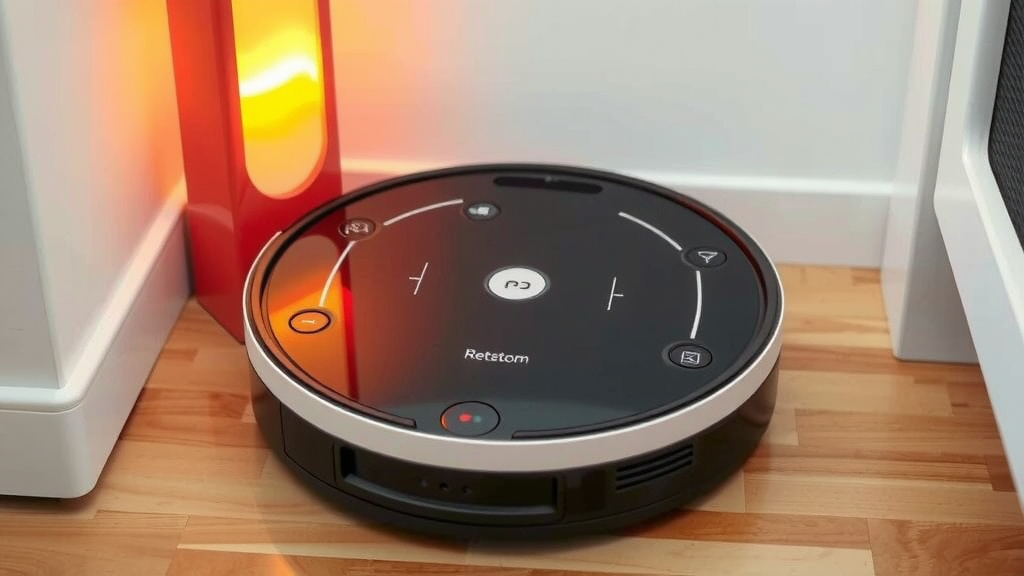
Many robot vacuums have a power button right on the unit itself. This is often the quickest way to start. You’ll usually find it on the top or the side of the robot. Just give it a firm press, and the machine should spring to life. You might hear a chime or see indicator lights turn on. It’s like giving your robot a gentle nudge to get to work.
Locating the Power Button
Take a look at the top of your robot vacuum. Is there a button labeled “Power,” “Start,” or maybe just a simple circle icon? That’s likely your command center! Some models tuck it away a bit more. Check the sides or even underneath the top lid if it flips open. A quick scan usually reveals the activation point. We found that manufacturers make this pretty obvious for ease of use.
What to Expect When You Press It
Once you press the button, you should see some feedback. Lights will probably illuminate to show it’s on and has power. Some robots make a little startup sound. If you’re lucky, it might even announce its readiness with a cheerful little voice. This signal confirms your robot is awake and ready for its cleaning mission.
Leveraging the Mobile App
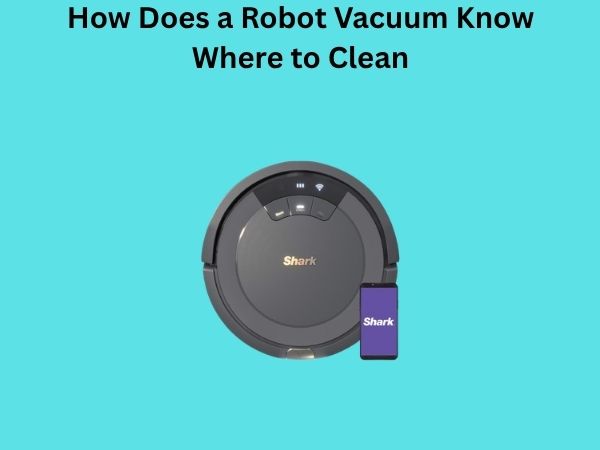
For a more modern approach, most smart robot vacuums connect to a mobile app. This app gives you remote control. You can often start, stop, and schedule cleanings from your phone. It’s incredibly convenient, especially when you’re not home. We found that app integration adds a whole new level of control. For a more modern approach, most smart robot vacuums connect to a mobile app.
Downloading and Connecting the App
First, you’ll need to download your robot vacuum’s specific app. Search for it in your device’s app store. Once downloaded, follow the on-screen instructions to connect the app to your robot. This usually involves pairing via Bluetooth or Wi-Fi. Make sure your home Wi-Fi is stable for a good connection. Many sources, like tech reviews, highlight a stable Wi-Fi connection as key to app functionality.
Starting a Clean Through the App
After connecting, open the app. You should see a prominent button to start a clean. It might say “Start,” “Clean,” or have a play icon. Tapping this button sends the command to your robot. It will undock and begin its programmed cleaning path. It’s like having a remote control for your entire floor!
The Importance of the Charging Dock
Before you even think about powering up, ensure your robot is properly situated. Most robot vacuums need to be on their charging dock to start a cleaning cycle. This ensures they have enough power for the job. A low battery can cut a cleaning session short, which is nobody’s favorite outcome. Many user manuals stress this foundational step (iRobot User Guide). Think of the dock as your robot’s home base and its fuel station.
Docking for Power
Make sure the charging contacts on the robot align with those on the dock. You might hear a click or see lights indicating it’s charging. If your robot isn’t docked correctly, it might not power on or charge. We found that a clean docking station, free of debris, also helps ensure a good connection.
Checking Battery Levels
Many apps will show you the battery percentage. If you’re using the manual button, there might be indicator lights on the robot itself. A solid green light often means it’s fully charged. A flashing light might indicate charging in progress or a low battery. Some robots will refuse to start if the battery is critically low. It’s wise to give it a good charge before its first big cleaning job. This simple check prevents mid-clean shutdowns.
Scheduling for Convenience
A fantastic feature of many robot vacuums is their ability to be scheduled. You can set specific days and times for cleaning. This means your robot can clean while you’re at work or asleep. No more thinking about it at all! We found that scheduling is a popular feature for busy households.
Setting Up a Cleaning Schedule
You’ll typically set schedules through the mobile app. Look for a “Schedule” or “Program” option. You can usually select which days of the week you want cleaning to occur. You can also choose the start time. Some advanced models even let you set different schedules for different rooms. It’s like having a tiny, automated maid service on call!
Here’s a quick checklist to get you started:
- Ensure your robot is on its charging dock.
- Check that the dock has power and is plugged in.
- Locate the power button on the robot or open the app.
- Verify the robot has sufficient battery charge (check lights or app).
- Press the power button or initiate cleaning via the app.
- Listen for startup sounds or look for indicator lights.
Conclusion
You’re now ready to power up your robot vacuum with confidence! We found that whether you use the simple button on the unit or the convenience of a mobile app, getting started is designed to be easy. Just remember to ensure your robot is properly docked and has a good charge before you begin. This small preparation ensures your cleaning cycle runs smoothly and effectively. So go ahead, press that button or tap that app, and enjoy your newly automated clean home! Just remember to ensure your robot is properly docked and has a good charge before you begin.
Frequently Asked Questions
What if my robot vacuum doesn’t turn on?
First, double-check that the robot vacuum is correctly seated on its charging dock. Ensure the dock itself is plugged in and receiving power. You might also want to check the battery level indicator lights or the mobile app to see if the battery is critically low and needs more time to charge.
Can I turn on my robot vacuum if it’s not on the dock?
Many robot vacuums can be powered on manually without being on the dock, but they usually won’t start a cleaning cycle until they are docked or have sufficient charge. Check your robot’s power button. If it turns on but doesn’t clean, it likely needs to be charged on its base first.
How do I know if my robot vacuum is charging?
Most robot vacuums have indicator lights that show charging status. A common sign is a light that pulses or changes color when the robot is connected to the dock and charging. Your mobile app will also typically display the current battery percentage and indicate if it’s actively charging.
My robot vacuum just stopped mid-clean. What should I do?
This usually means the battery ran out of power. You’ll need to manually place your robot vacuum back onto its charging dock. Once it’s fully charged, you can usually resume the cleaning cycle from where it left off, either by pressing the start button again or through the app.
Is it better to use the app or the button to turn on my robot vacuum?
Both methods work well. Using the physical button is quick for immediate cleaning. The mobile app offers more convenience, allowing you to start, stop, schedule, and monitor your robot vacuum from anywhere. We found that many users enjoy the scheduling features available through the app for automated home care.
![7 Best Affordable Robot Vacuum For Pets [2026]](https://robotvacuumfact.com/wp-content/uploads/2026/06/7-best-affordable-robot-vacuum-for-pets-2026-featured-768x432.jpg)