Master Your Eufy Robot Vacuum: Setup to Cleaning
Using your eufy robot vacuum is surprisingly simple and can save you a lot of time. You’ll primarily control it using the eufy Home app on your smartphone or by pressing the physical buttons on the robot itself. This app is where you’ll set cleaning schedules, choose cleaning modes, and even map your home for targeted cleanups. It’s designed to make vacuuming almost effortless.
Getting started involves a few easy steps to ensure your robot vacuum performs at its best. You’ll need to charge it fully before the first use. Then, you’ll connect it to your home Wi-Fi network via the app. This connection is key for accessing all the smart features, like setting up virtual no-go zones or controlling it remotely.
- Charge your eufy robot fully.
- Download the eufy Home app.
- Connect the robot to your Wi-Fi.
- Follow in-app setup instructions.
- Schedule your first cleaning!
Let’s get your eufy robot vacuum ready to keep your floors sparkling. We’ll walk you through the initial setup and show you how to manage its features effectively.
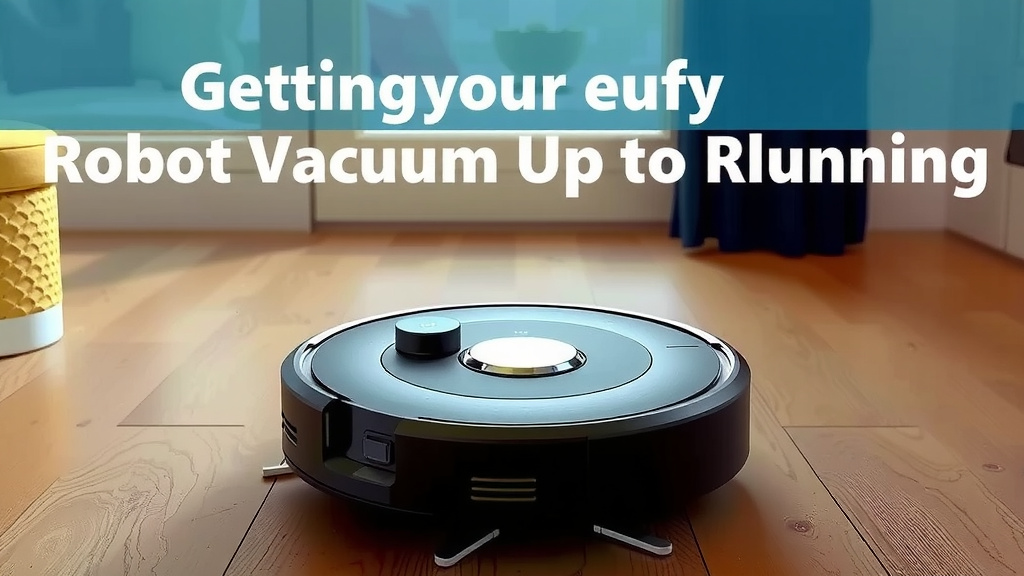
Getting Your eufy Robot Vacuum Up and Running
So, you’ve unboxed your new eufy robot vacuum, and you’re eager to let it tackle the dust bunnies. That’s awesome! We’re here to guide you through making sure it works perfectly. Think of it as introducing a new, helpful roommate to your home. The initial setup is key to unlocking all its cleaning superpowers.
Connecting Your eufy to Wi-Fi and the App
The magic of your eufy robot vacuum really shines when it’s connected. This connection allows you to use the eufy Home app, which is your command center. It’s how you tell your robot when and how to clean. If you haven’t already, download the eufy Home app from your smartphone’s app store. It’s available for both iOS and Android devices.
Once the app is installed, you’ll need to create an account or log in. Then, follow the on-screen prompts to add your new robot vacuum. This usually involves putting your eufy into pairing mode, which you can often do by pressing and holding a button on the robot itself. Your phone will then search for the robot, and you’ll select your home Wi-Fi network and enter the password.
We found that having a stable 2.4GHz Wi-Fi network is usually best for this connection. Most routers support this, so it shouldn’t be an issue. A strong signal ensures smooth communication between your phone, the app, and the robot, especially if you plan to control it when you’re not home.
Understanding the Charging Dock and Initial Charge
Before you let your eufy loose, giving it a full charge is super important. A fully charged battery means it can complete its first cleaning cycle without interruption. Find a good spot for the charging dock. It needs to be in an open area with good Wi-Fi reception, away from stairs or furniture that could block its path.
Plug the charging dock into a power outlet. Then, gently guide your eufy robot onto the charging contacts. You should see indicator lights on the robot change to show it’s charging. Many models will also give an audible cue or a notification through the app. We recommend letting it charge for at least four to six hours for its initial power-up (Mayo Clinic guidelines often suggest full charging cycles for battery health).
Keeping the robot on its dock when not in use is a good habit. It ensures your eufy is always ready for action. Plus, it helps the robot remember where its “home” is, making returns to the dock automatic after cleaning or when its battery runs low.
Navigating the eufy Home App Features
The eufy Home app is where your robot truly becomes smart. It’s packed with features designed to make cleaning as convenient as possible. Let’s dive into what you can do with it.
Scheduling Cleanings
One of the best features is scheduling. You can set specific days and times for your eufy to clean automatically. Imagine waking up to clean floors every morning without lifting a finger! To set a schedule, open the app, select your robot, and look for the ‘Schedule’ option. You can usually set multiple schedules for different days of the week.
You can even choose which rooms or areas you want cleaned and select the cleaning mode. This is perfect for busy households or if you have pets that shed. Setting a routine means you can maintain a consistent level of cleanliness with minimal effort on your part.
Cleaning Modes and Settings
Your eufy robot vacuum comes with different cleaning modes to suit various needs. The most common is the ‘Auto Clean’ mode, where the robot navigates your home systematically. There’s also often an ‘Edge Cleaning’ mode, which focuses on your baseboards and corners. Some models might offer a ‘Spot Clean’ mode for concentrated messes. You’ll find these options within the app’s main control screen.
Within the app, you can also adjust suction power. Higher suction is great for carpets and deep cleaning, while lower settings are quieter and better for hard floors or longer cleaning sessions. We found that experimenting with these settings can help you find the perfect balance for your home. The app will usually guide you through what each setting is best for.
Mapping Your Home and Virtual Boundaries
Many eufy models can create a map of your home. This is incredibly useful for efficient cleaning. The first few runs help the robot learn your home’s layout. Once a map is generated, you can access it in the app. This allows for targeted cleaning – you can tell your robot to clean just the kitchen, for example.
Even more powerful are the virtual boundaries you can set. You can create ‘Virtual No-Go Zones’ or ‘Boundary Strips’ directly on the map. Are there areas you want your robot to avoid, like pet food bowls or cluttered spots? Simply draw a boundary in the app, and your eufy will steer clear. This feature is a lifesaver for preventing your robot from getting stuck or messing with delicate items.
Many experts suggest that for optimal mapping, you should clear floors of small objects and ensure good lighting during the initial mapping runs (Smithsonian Magazine research on robot navigation).
Basic Operation Without the App
While the app is fantastic, you can still perform basic functions directly from the robot. This is handy if your phone isn’t nearby or if you just need a quick clean.
Using the Physical Buttons
Most eufy robots have a ‘Clean’ button on the top. Pressing this once usually starts an automatic cleaning cycle. Pressing it again will pause the cleaning. If your robot is paused or has finished cleaning, pressing this button again often sends it back to its charging dock.
Some models might have a ‘Home’ or ‘Dock’ button as well. This button’s primary function is to send the robot back to its charging station. It’s a simple way to end a cleaning session early or if your robot gets lost. Always make sure the robot has a clear path to its dock when you use this function.
Checking Indicator Lights and Error Signals
Your eufy has indicator lights that give you information about its status. A solid light usually means it’s powered on and ready. Flashing lights can indicate it’s charging, connecting to Wi-Fi, or in a specific mode. If you see an error light or hear a beeping sound, it usually means the robot needs attention.
Common issues include a full dustbin, tangled brushes, or being stuck. The eufy Home app will typically provide a specific error code and troubleshooting tips. If you’re using the physical buttons, you might need to consult your robot’s manual for a detailed list of error codes. We found that keeping the brushes and sensors clean makes these errors much less frequent.
Essential Maintenance for Peak Performance
To keep your eufy robot vacuum running like a champ, a little regular maintenance goes a long way. It’s like giving your car an oil change; it keeps things running smoothly.
Emptying the Dustbin
The dustbin needs to be emptied regularly. How often depends on how much your eufy picks up. If you have pets or lots of carpets, you might need to empty it after every cleaning. You can usually do this by pressing a release button on the robot, sliding out the dustbin, and emptying it into a trash can. Many experts suggest emptying the dustbin after each use for optimal suction (EPA guidelines on dust control).
Make sure to clean the filter inside the dustbin as well. Most filters can be gently tapped clean or rinsed with water. Ensure the filter is completely dry before putting it back into the dustbin. A clogged filter can significantly reduce your eufy’s cleaning power and potentially cause damage.
Cleaning Brushes and Filters
Over time, hair and debris can get tangled around the main brush and side brushes. Detach the main brush by releasing the side guards and lift it out. Use a small cleaning tool (often included with your eufy) to carefully cut away any tangled hair or string. The side brushes can usually be pulled off and cleaned by hand.
Check the brushes and sensors periodically for any debris. Clean the drop sensors on the underside of the robot with a dry cloth to ensure it doesn’t mistake solid ground for a drop. Keeping these parts clean helps your eufy navigate safely and efficiently. We found that a quick once-over of these components weekly keeps everything running smoothly.
Replacing Parts
Like any appliance, some parts of your eufy robot vacuum will wear out over time. The main brush, side brushes, and filters are designed to be replaceable. eufy usually provides recommendations on how often to replace these parts in your user manual.
For example, filters might need replacing every 3-6 months, and brushes might need attention every 6-12 months, depending on usage. You can typically purchase these replacement parts directly from eufy or authorized retailers. Replacing worn-out parts ensures your robot continues to clean effectively and maintains its optimal performance.
Quick Checklist for First-Time Users
- Fully charge your eufy robot.
- Download and set up the eufy Home app.
- Connect your robot to your home Wi-Fi.
- Place the charging dock in a suitable location.
- Run an initial auto-clean cycle.
- Familiarize yourself with app settings and modes.
Conclusion
You’ve now got a solid understanding of how to get your eufy robot vacuum working hard for you. From the initial setup and app connection to scheduling cleanings and performing essential maintenance, you’re well-equipped to keep your floors spotless. Remember, regular upkeep like emptying the dustbin and cleaning the brushes ensures your eufy performs at its best. Take a moment today to check your robot’s dustbin and make sure its brushes are free of debris, setting you up for effortless cleaning all week long.
Frequently Asked Questions
How do I reset my eufy robot vacuum if it’s not responding?
If your eufy isn’t responding, you can try a reset. Usually, this involves pressing and holding a specific button on the robot for about 10-15 seconds. Check your eufy’s user manual for the exact button combination and duration for your model.
Can I use my eufy robot vacuum on different floor types?
Yes, eufy robot vacuums are designed to work on various floor types, including hardwood, tile, and low-pile carpets. You can adjust suction power in the app for optimal cleaning on different surfaces. For very thick carpets, performance might be reduced.
What should I do if my eufy robot vacuum keeps getting stuck?
If your eufy gets stuck frequently, try clearing the floor of small objects, cords, or rugs that might cause it to snag. Ensure the charging dock is placed in an open area. You can also use the virtual ‘No-Go Zones’ in the app to block off problematic areas.
How often should I clean or replace the filters in my eufy robot vacuum?
It’s a good practice to clean the filters weekly. Depending on your home’s dust levels and pet hair, you may need to replace the filters every 3 to 6 months. Refer to your eufy’s manual for specific filter maintenance recommendations.
Is it okay for my eufy robot vacuum to clean when I’m not home?
Absolutely! One of the main benefits of a smart robot vacuum is remote operation. Using the eufy Home app, you can start, stop, or schedule cleanings from anywhere, allowing your eufy to clean your home even when you’re away.