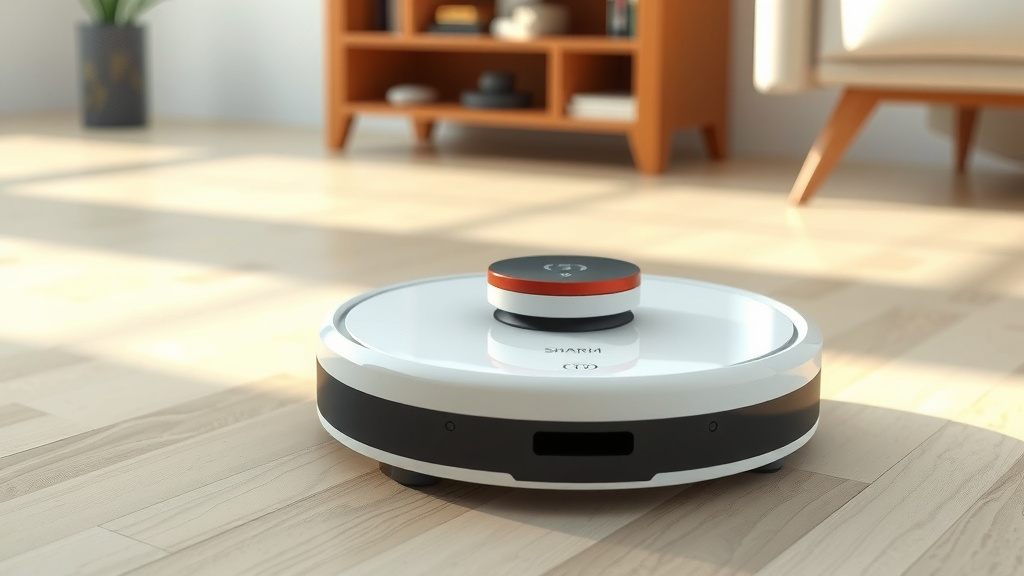
Shark Matrix Robot Vacuum: A Complete Guide
The easiest way to use your Shark Matrix robot vacuum is by downloading the Shark app. This allows you to schedule cleanings and control it from anywhere. You can also start a cleaning cycle with the physical buttons on the robot itself.
Getting your Shark Matrix robot vacuum up and running is simpler than you might think. We found that the app offers the most control, letting you create custom cleaning zones and view your home’s map. It’s designed to make home cleaning feel almost effortless.
- Download the Shark app for full control.
- Schedule cleanings on your phone.
- Map your home for targeted cleaning.
- Start or stop cleaning with physical buttons.
- Enjoy a cleaner home with less effort.
Ready to get started? Let’s walk through how to set up and use your Shark Matrix robot vacuum step by step.
“`htmlGetting Started with Your Shark Matrix Robot Vacuum
You’ve unboxed your Shark Matrix robot vacuum, and now it’s time to get it cleaning! We found that the quickest way to a spotless floor is by setting it up properly. This usually involves connecting it to your home Wi-Fi network. This connection is key for smart features and app control.
Unboxing and Initial Setup
First things first, let’s get everything out of the box. You’ll find your robot vacuum, a charging base, a power cord, and possibly some extra brushes or filters. Make sure to remove any shipping tape or protective coverings from the robot and the charging base. It’s like preparing your trusty sidekick for its first mission!
Charging Your Robot
Before its first big cleaning job, your Shark Matrix needs a full charge. Place the charging base against a wall on a level surface. Ensure there’s enough clear space around it. Your robot needs about three to four hours to get a complete charge. We found that a fully charged battery means a more thorough cleaning cycle.
Tip: Make sure the charging contacts on both the robot and the base are clean. A simple wipe with a dry cloth can help ensure a good connection.
Connecting to the Shark App
This is where the magic happens! To get the most out of your Shark Matrix, you’ll want to download the Shark app. It’s available on both iOS and Android devices. The app guides you through connecting your robot to your home Wi-Fi. We found this step to be quite straightforward.
Downloading and Installing the App
Search for “Shark Clean” in your device’s app store. Download and install the app. Once it’s installed, you’ll need to create a Shark account or log in if you already have one. This account links your robot to your app.
Pairing Your Robot
Follow the in-app instructions to pair your robot. This typically involves putting the robot into pairing mode and entering your Wi-Fi password. Many experts suggest having a strong Wi-Fi signal for this step. It ensures a stable connection for all the smart features you’ll be using.
Using Your Shark Matrix for Everyday Cleaning
Now that your robot is charged and connected, it’s ready to clean! You have a few ways to start a cleaning cycle. We found that the app offers the most flexibility, but sometimes a quick button press is all you need.
Starting a Cleaning Cycle
You can start a cleaning cycle in a few ways. The most basic is using the physical buttons on the robot itself. Look for a “Clean” or “Start” button on the top of your Shark Matrix. Pressing this will typically initiate a full-home clean.
For more control, use the Shark app. You can select “Clean” from the main screen. This often tells the robot to clean the entire mapped area.
Scheduling Cleanings
One of the best features is scheduling. Imagine waking up to clean floors every morning! Through the Shark app, you can set specific days and times for your robot to clean automatically. You can even set different schedules for different days of the week. We found this feature truly saves time.
Understanding the Home Map
During its initial runs, your Shark Matrix will map your home. This map is crucial for smart navigation and targeted cleaning. The app displays this map, showing you the layout of your rooms and where the robot has cleaned.
Creating Cleaning Zones
The map allows you to get specific. You can draw “cleaning zones” on the map within the app. Need to clean just the kitchen after dinner? Create a zone for the kitchen. Want to avoid a certain area? You can do that too. This precision cleaning is a real game-changer.
Setting No-Go Zones
Accidents happen, and sometimes your robot might try to go where you don’t want it to. The app lets you create “no-go zones.” These are areas the robot will completely avoid. This is perfect for protecting delicate items, pet bowls, or areas with lots of cables. Many users find this essential for pet owners.
Manual Control and Spot Cleaning
Sometimes, you just need a quick touch-up. Your Shark Matrix can do this too. If you see a small mess, you can direct the robot to that specific spot. The app often has a “Spot Clean” mode or allows you to drive the robot manually like a remote-controlled car to the desired area. Pressing the “Dock” button will send it back to its charging base when you’re done.
Maintaining Your Shark Matrix for Peak Performance
Just like any appliance, your robot vacuum needs a little TLC to keep running smoothly. Regular maintenance ensures it cleans effectively and lasts longer. We found that a few simple tasks make a big difference.
Emptying the Dust Bin
Your robot collects dust and debris in a small dustbin. You’ll need to empty this regularly, typically after each cleaning cycle, or when the app notifies you it’s full. A full dustbin can reduce suction power. Simply detach the bin, empty it into your trash, and reattach it. It’s a quick process.
Cleaning the Brushes and Filters
Over time, hair and debris can get tangled in the brushes. You’ll want to check these periodically and remove any obstructions. Your robot also has filters that trap fine dust. These filters need cleaning or replacing according to the manufacturer’s recommendations. Many guidelines suggest cleaning filters monthly and replacing them every few months for optimal performance (Shark Official Manual).
Here’s a quick checklist for maintenance:
- Empty the dustbin after every few cleans.
- Check brushes for tangled hair and debris.
- Clean or replace the filters as recommended.
- Wipe down the sensors for accurate navigation.
- Ensure the charging base is free of obstructions.
Conclusion
You’ve learned how simple it is to get your Shark Matrix robot vacuum cleaning your home. We found that connecting it to the Shark app is your gateway to smart features like scheduling and custom cleaning zones. Don’t forget that regular maintenance, like emptying the bin and cleaning the brushes, keeps your robot performing at its best. Now that you’re set up and know the basics, it’s time to enjoy cleaner floors with minimal effort. Your next step is to initiate your first scheduled clean through the app and experience the convenience for yourself!
Frequently Asked Questions
How do I get my Shark Matrix to start cleaning if I don’t want to use the app?
You can start a cleaning cycle using the physical buttons on the robot itself. Simply locate the “Clean” or “Start” button on the top of your Shark Matrix and press it. This will usually initiate a full-home cleaning without needing your smartphone.
What’s the best way to ensure my Shark Matrix maps my home accurately?
For accurate mapping, ensure the robot has a clear path during its initial cleaning runs. Remove any small obstacles or cords that might confuse its sensors. Also, make sure the charging base is placed in a location with good Wi-Fi signal strength.
How often should I empty the dustbin on my Shark Matrix?
You should empty the dustbin regularly, ideally after each cleaning cycle or whenever the Shark app notifies you that it’s full. A full dustbin can significantly reduce the robot’s suction power and cleaning efficiency.
Can my Shark Matrix clean multiple levels of my home?
Your Shark Matrix is designed to clean the area it’s placed in. If you have a multi-story home, you’ll need to manually move the robot and its charging base to each level you want cleaned. It does not automatically navigate stairs.
What should I do if my Shark Matrix gets stuck frequently?
If your robot frequently gets stuck, check its path for common culprits like rug tassels, power cords, or tight furniture clearances. You can also use the app to create “no-go zones” around problem areas to prevent it from entering them.

![7 Best Deal On Shark Robot Vacuum [2026]](https://robotvacuumfact.com/wp-content/uploads/2026/08/7-best-deal-on-shark-robot-vacuum-2026-featured-768x432.jpg)