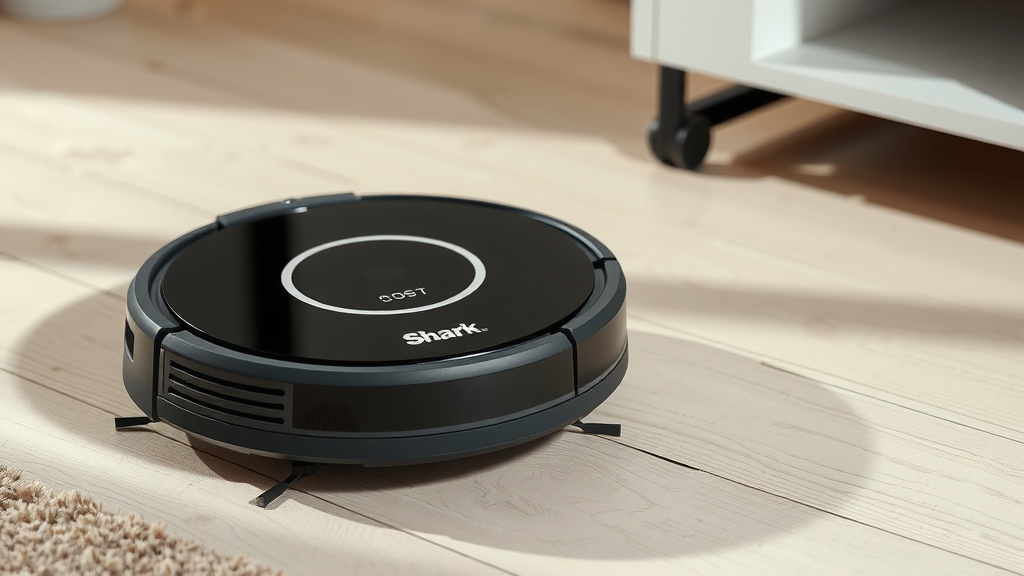
Programming Your Shark Robot Vacuum: A Simple Guide
Programming your Shark robot vacuum is surprisingly simple. You can typically set schedules, customize cleaning modes, and manage cleaning zones directly through the SharkClean app on your smartphone or tablet. This lets you control your robot even when you’re not home, ensuring a consistently clean floor with minimal effort. It’s designed to make your life easier.
Beyond basic scheduling, many Shark robot vacuums offer advanced features. You can create no-go zones to keep your robot away from delicate areas. Some models even allow you to map out specific rooms for targeted cleaning. We found that mastering these features can truly optimize your cleaning routine and save you even more time.
- Set cleaning schedules easily.
- Customize cleaning modes for different floor types.
- Define no-go zones or specific cleaning areas.
- Control your robot remotely via the app.
- Enjoy a cleaner home with less effort.
Ready to get your Shark robot vacuum working smarter, not harder? Let’s walk through how to program it step by step.
Getting Your Shark Robot Vacuum Set Up
Programming your Shark robot vacuum is simpler than you might think. You’ll primarily use the SharkClean app. This app connects your robot to your home Wi-Fi. It acts as your remote control. You can set cleaning schedules and customize cleaning preferences. We found that the initial setup is guided and straightforward.
Downloading and Connecting the App
First, you need to download the SharkClean app. It’s available for both iOS and Android devices. Search for “SharkClean” in your app store. Once downloaded, open the app and create an account or log in. Follow the on-screen instructions to connect your robot vacuum. This usually involves putting your robot into pairing mode and entering your home’s Wi-Fi password. Ensure your Wi-Fi network is a 2.4GHz band, as many smart home devices, including robot vacuums, prefer this connection type. Some sources suggest this is a common point of confusion for users. Follow the on-screen instructions to connect your robot vacuum to your home Wi-Fi.
Pairing Your Robot Vacuum
Pairing your Shark robot to the app is crucial. You’ll typically press a button on the robot itself or within the app to start the pairing process. The robot will emit a signal. Your phone will then search for this signal. Once found, you’ll confirm the connection. Make sure you’re near your router during this step for a stable connection. We discovered that a strong Wi-Fi signal is key to a smooth experience.
Scheduling Your Robot’s Cleaning Times
One of the best features of a smart robot vacuum is the ability to schedule cleanings. This means your floors can be cleaned automatically. You can set it to clean while you’re at work or even while you sleep. It’s like having a little cleaning assistant working for you.
Setting Up a Basic Schedule
Within the SharkClean app, look for the “Schedule” or “Routines” section. Here, you can set specific days and times for your robot to start cleaning. For instance, you could set it to clean every weekday morning at 9 AM. You can also choose which rooms or areas you want it to clean during these scheduled times, if your model supports room selection.
Choosing Cleaning Frequency and Time
Decide how often you want your robot to clean. Daily, every other day, or just a few times a week are common options. Then, pick a time when no one will be home or when it won’t be disruptive. We found that morning schedules often work well. This way, you come home to clean floors.
Advanced Scheduling Options
Some Shark models offer more advanced scheduling. You might be able to set different schedules for different days of the week. For example, a more thorough clean on Saturdays and a quick tidy-up on Tuesdays. You can often select specific cleaning modes for each schedule. This ensures the right level of clean for each day.
Customizing Cleaning Modes and Preferences
Your Shark robot vacuum isn’t a one-size-fits-all cleaner. You can adjust its settings to match your home and your needs. This customization is what makes programming truly useful.
Understanding Different Cleaning Modes
Shark robots typically have various cleaning modes. These might include:
- Auto Mode: The robot cleans in a systematic pattern.
- Edge Mode: Focuses on cleaning along walls and edges.
- Spot Clean: Cleans a concentrated area intensely.
- Quiet Clean: Operates at a lower power setting for reduced noise.
Adjusting Suction Power
You can often adjust the suction power of your robot. Higher suction is better for carpets and deep cleaning. Lower suction is fine for hard floors and to save battery life. Many experts recommend using a higher setting on carpets (Cleveland Clinic).
You might also find options for adjusting brush roll speed or other performance settings. These tweaks help optimize cleaning for different floor types. For example, you’ll want less aggressive settings on delicate hardwood floors compared to thick carpet.
Mapping and Zone Cleaning Features
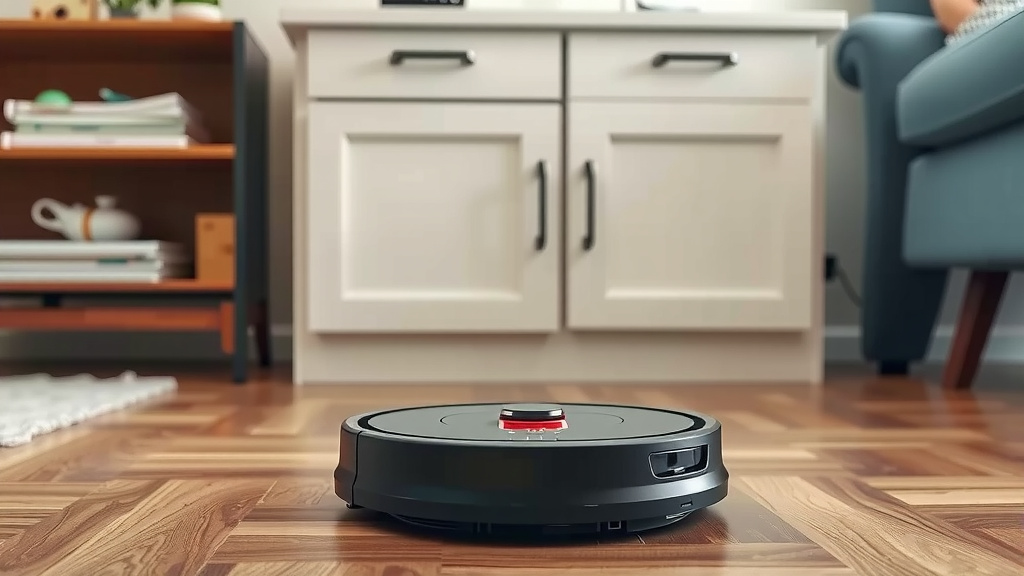
Higher-end Shark robot vacuums come with smart mapping technology. This allows for much more precise control over where and when your robot cleans.
How Room Mapping Works
When you first use your robot, it will likely perform a mapping run. It navigates your home to create a floor plan in the app. This map divides your home into rooms. You can then name these rooms. This mapping process can take an hour or two. We found it’s worth the wait for the control it provides.
Setting Up No-Go Zones and Clean Zones
Once your map is created, you can set no-go zones. These are areas you want your robot to avoid entirely. Think of them as digital fences. You might use this for pet bowls, delicate furniture, or areas with lots of wires. You can also set clean zones. This allows you to direct your robot to clean specific rooms or even specific parts of a room. Need to clean just the kitchen after dinner? You can tell your robot to do just that. This is incredibly useful for targeted cleaning. We found that no-go zones are excellent for keeping the robot away from stairs.
Using Targeted Room Cleaning
With room mapping, you can send your robot to clean specific rooms on demand. Just select the room from the map in the app and start a cleaning cycle. This is perfect for quick cleanups. You don’t have to run the robot all over the house if you only need one area cleaned. This saves time and battery.
Troubleshooting Common Programming Issues
Sometimes, technology doesn’t cooperate perfectly. Here are a few common hiccups and how to fix them.
Connection Problems
If your robot loses connection to the app, check your Wi-Fi. Ensure your router is on and working. Try restarting both your router and your robot vacuum. Sometimes, interference from other devices can cause issues. Many sources suggest checking router placement.
Scheduling Conflicts
If a scheduled cleaning doesn’t run, check the app for errors. Make sure the robot is charged and docked. Ensure there aren’t conflicting schedules set up. You might need to delete and re-create the schedule if it seems corrupted.
Here’s a quick checklist to ensure your programming is on track:
- Robot is connected to your Wi-Fi network.
- SharkClean app is updated to the latest version.
- Schedules are set for appropriate times.
- No-go zones are configured correctly if used.
- Robot is docked and charging between cleanings.
- You have a strong Wi-Fi signal in the cleaning areas.
Conclusion
You’ve now learned how to program your Shark robot vacuum to work for you. By mastering the SharkClean app, you can set schedules, customize cleaning modes, and utilize smart mapping features. This means less manual effort for you. Your robot can handle the cleaning even when you’re busy. Take a few minutes today to set up your first cleaning schedule. You’ll soon enjoy a consistently cleaner home with minimal fuss.
Frequently Asked Questions
How do I reset my Shark robot vacuum to factory settings?
You can typically perform a factory reset through the SharkClean app. Look for a “Settings” or “Device Information” section. There should be an option to reset your robot. This will erase all saved maps and schedules, returning it to its original state.
Can I use the app to control my robot if I’m away from home?
Yes, as long as your robot is connected to your home Wi-Fi and your smartphone has an internet connection, you can control it remotely. This allows you to start, stop, or schedule cleanings from anywhere.
My robot isn’t connecting to Wi-Fi, what should I do?
First, ensure you are using a 2.4GHz Wi-Fi network, as many robots don’t support 5GHz. Try restarting your router and your robot vacuum. Also, double-check that you entered the correct Wi-Fi password. Moving the robot closer to the router during setup can help.
What happens if the battery runs out during a scheduled cleaning?
Most Shark robot vacuums are designed to automatically return to their charging dock when the battery is low. Once recharged, they will resume cleaning from where they left off, provided the schedule allows for it or you restart the cleaning cycle.
Can I edit or delete a cleaning schedule once it’s set?
Absolutely. You can easily modify or remove any scheduled cleanings directly within the SharkClean app. Just navigate to the schedule section, select the routine you wish to change, and you’ll see options to edit the time, days, or delete it entirely.