
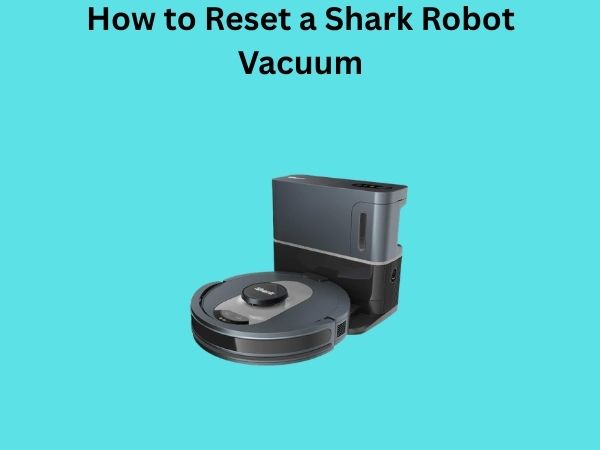
How to Reset a Shark Robot Vacuum: A Complete Guide to Getting Your Cleaner Back on Track
There’s nothing quite like the convenience of a Shark robot vacuum gliding across your floors, doing the dirty work while you relax. But what happens when your trusty cleaning companion starts acting up? Maybe it’s not responding to commands, won’t dock properly, or keeps bumping into things like it’s had one too many cups of coffee. The good news? You don’t need to call a technician or panic. Resetting your Shark robot vacuum is often the magic wand that solves most problems, and I’m here to walk you through exactly how to do it.
Understanding Your Shark Robot Vacuum: Why Resets Matter
Before we dive into the how, let’s talk about the why. Think of your Shark robot vacuum like a smartphone—sometimes it just needs to clear its head and start fresh. Over time, software glitches, conflicting settings, or communication errors can build up, causing your vacuum to behave erratically. A reset essentially wipes the slate clean, allowing the device to recalibrate and reconnect to your home network without any baggage from previous operations.
Whether you’re dealing with connection issues, navigation problems, or the dreaded unresponsiveness, understanding the different reset options available to you is the first step toward troubleshooting success.
Types of Resets: Knowing Your Options
Not all resets are created equal. Your Shark vacuum has several reset options, each serving a different purpose. It’s kind of like having different intensity levels on a washing machine—you choose the right one for the job at hand.
Soft Reset vs. Hard Reset: What’s the Difference?
A soft reset is the gentler approach. It restarts the vacuum’s system without erasing any stored data or settings. Imagine closing and reopening an app on your phone—it refreshes the software without affecting your saved information. This is your go-to solution for minor glitches and connectivity hiccups.
A hard reset, on the other hand, is the nuclear option. It wipes everything—your Wi-Fi settings, scheduling preferences, and any customizations you’ve made. You’ll essentially be starting from scratch. This is what you’d choose when your vacuum is seriously misbehaving or when you’re preparing to sell or gift it to someone else.
The Soft Reset Method: Quick and Easy
Let’s start with the simplest solution. The soft reset is your first line of defense and takes mere seconds to complete.
Step-by-Step Soft Reset Instructions
Here’s how to perform a soft reset on your Shark robot vacuum:
- Locate the power button on top of your vacuum. You’ll typically find it in the center of the device.
- Press and hold the power button for about three to five seconds.
- You should see the lights blink or hear a beep, indicating the device is shutting down.
- Wait approximately ten seconds before pressing the power button again to turn it back on.
- Allow the vacuum about 30 seconds to fully boot up and initialize.
That’s it! Your soft reset is complete. In many cases, this simple action resolves minor connectivity issues and gets your vacuum back to normal operation. The whole process takes less than a minute, making it something you can try before moving on to more involved troubleshooting.
When to Use a Soft Reset
A soft reset is perfect for situations like these:
- Your vacuum isn’t responding to app commands
- It’s not connecting to your Wi-Fi properly
- The robot seems sluggish or unresponsive
- You’ve recently changed your Wi-Fi password and the vacuum lost connection
- Navigation appears erratic or confused
The Hard Reset Method: Starting Completely Fresh
When a soft reset doesn’t cut it, it’s time to bring out the big guns. A hard reset is more involved but necessary in certain situations.
Locating the Reset Button
The reset button on your Shark robot vacuum is typically hidden on the underside of the device. Here’s where to find it:
- Flip your vacuum over carefully, supporting it properly to avoid dropping it.
- Look for a small, recessed button—it often appears as a tiny hole slightly larger than a pinhead.
- This button is usually labeled “Reset” or marked with a small icon.
- Have a paperclip, pen tip, or similar thin object ready to press it.
Finding this button can feel like a treasure hunt, especially if you don’t have your manual handy. If you’re having trouble locating it, your user manual is your best friend—it’ll show you exactly where the reset button lives on your specific model.
Performing the Hard Reset
Once you’ve located the reset button, here’s the process:
- Ensure your vacuum is powered on.
- Insert your thin object into the reset button hole.
- Press and hold the button for approximately ten to fifteen seconds.
- You’ll see lights flash or hear beeping sounds—this indicates the reset is in progress.
- Release the button when the lights stabilize or the beeping stops.
- Wait for the vacuum to fully restart, which may take a minute or two.
- The vacuum will now be reset to factory settings.
After a hard reset, your vacuum is essentially brand new from a software perspective. All your previous settings, schedules, and Wi-Fi connections are gone, so you’ll need to set everything up again through the mobile app.
What Happens After a Hard Reset
Understanding what to expect after a hard reset helps you navigate the aftermath confidently:
Your vacuum will have no Wi-Fi connection, so you won’t be able to control it remotely until you reconnect it. All cleaning schedules you’ve created are wiped clean. Your vacuum loses any learned patterns about your home’s layout. Any custom settings or preferences are erased. The vacuum essentially returns to its factory state, as if you just unboxed it for the first time.
Resetting Your Shark Robot Vacuum Through the Mobile App
Many modern Shark vacuum models offer an in-app reset option, which is convenient because you don’t need to physically access your device.
Steps to Reset Through the SharkClean App
- Open the SharkClean mobile application on your smartphone.
- Navigate to the device settings menu.
- Look for an option labeled “Reset Device” or “Factory Reset.”
- Select this option—you’ll likely be prompted to confirm your choice.
- Confirm the reset when prompted.
- Your vacuum will restart and return to factory settings.
This method is fantastic if your vacuum is within range and your app connection is working. It’s faster than hunting for the physical reset button and eliminates the need to flip your vacuum over.
Reconnecting Your Shark Vacuum After a Reset
Once you’ve performed your reset, you’ll need to reconnect your vacuum to your Wi-Fi and app. Here’s how to get back up and running:
Initial Setup Steps
- Place your vacuum on its dock to ensure it has adequate battery and is stationary.
- Open the SharkClean app on your mobile device.
- Select the option to add or set up a new device.
- Follow the on-screen prompts to connect your vacuum to your Wi-Fi network.
- Make sure your vacuum and smartphone are on the same Wi-Fi network (ideally a 2.4GHz connection, not 5GHz).
- Enter your Wi-Fi password when prompted.
- Allow the app to complete the setup process—this usually takes two to three minutes.
Once reconnected, your vacuum is ready to resume its cleaning duties. You’ll need to reprogram any schedules you previously had set up, but the hard part is done.
Common Reset Issues and Troubleshooting
Sometimes resets don’t go as smoothly as we’d hope. Let’s address some common problems you might encounter:
Reset Button Isn’t Working
If you’re pressing the reset button repeatedly with no results, the issue might be that your button isn’t making proper contact. Try using a different thin object, or clean the area around the button to remove any dust that might be blocking it. If it still doesn’t work, your reset button might be defective, and you should contact Shark customer support.
Vacuum Won’t Reconnect After Reset
This is frustrating, but there are solutions. First, ensure your Wi-Fi network is working properly by testing it on another device. Try moving closer to your router or Wi-Fi access point when setting up the connection. If you have a dual-band router, try connecting to the 2.4GHz network specifically—some Shark models have compatibility issues with 5GHz bands. Restart both your router and your vacuum, then attempt the setup process again.
App Won’t Recognize the Vacuum After Reset
Make sure you’re using the latest version of the SharkClean app—outdated versions sometimes struggle with reconnection. Log out of the app completely, then log back in. If the vacuum still isn’t appearing, uninstall and reinstall the app entirely. Sometimes a fresh installation clears up mysterious connection problems.
Preventing Problems: Maintenance Tips
While resets are helpful, preventing problems in the first place is even better. Think of these maintenance tips as preventative medicine for your robot vacuum:
Regular Software Updates
Keep your vacuum’s software current by checking for updates through the mobile app. Updates often include bug fixes and performance improvements that prevent issues before they occur.
Clear the Sensors Regularly
Dust and debris can accumulate on your vacuum’s sensors, causing navigation issues. Gently wipe the sensors on the front and bottom of your vacuum weekly with a soft, dry cloth.
Maintain Your Wi-Fi Connection
Keep your router running smoothly and ensure strong Wi-Fi signal throughout your home. A weak connection often causes app and remote control issues that users mistakenly attribute to vacuum problems.
Clean the Brush and Dustbin
A clogged vacuum is a frustrated vacuum. Empty the dustbin after each cleaning cycle and remove hair tangled around the brush weekly. This prevents performance issues that might otherwise seem like software glitches.
When to Contact Customer Support
Sometimes, despite your best reset efforts, your vacuum still won’t cooperate. Knowing when to throw in the towel and contact professionals is important.
You should reach out to Shark customer support if your vacuum still malfunctions after a soft reset and reconnection. Hardware damage—like a broken sensor, malfunctioning motor, or physical damage—won’t be fixed by resetting. If the reset button appears damaged or unresponsive, professional help is needed. Persistent Wi-Fi connectivity issues that affect multiple devices on your network suggest a deeper problem beyond the vacuum itself.
Different Shark Models: Are Resets Universal?
While the basic reset principles are similar across Shark robot vacuum models, there are some variations. Some models might have slightly different button locations or app procedures. Always consult your specific model’s user manual for precise instructions tailored to your vacuum. The Shark website offers manuals for download if you can’t locate yours, making it easy to get model-specific guidance.
Conclusion
Resetting your Shark robot vacuum is one of the most effective troubleshooting steps you can take, and now you know exactly how to do it. Whether you opt for a quick soft reset to clear minor glitches or a comprehensive hard reset to start from scratch, you have the knowledge to get your vacuum back in working order. Remember to start with the gentler soft reset before escalating to more drastic measures, and don’t hesitate to consult your manual or contact customer support if you hit roadblocks. With regular maintenance and occasional resets when needed, your Shark robot vacuum will continue to be a reliable cleaning companion for years to come. The next time your vacuum acts up, you can confidently troubleshoot the problem yourself without any guesswork involved.
Frequently Asked Questions
How long does it take to reset a Shark robot vacuum?
A soft reset typically takes less than a minute from start to finish. A hard reset takes slightly longer—approximately two to three minutes total, including the time for the device to fully restart and initialize. Reconnecting through the app after a hard reset adds another few minutes to the process.
Will resetting my Shark vacuum erase my cleaning history and preferences?
A soft reset will preserve your settings and cleaning history. A hard reset, however, wipes everything clean—all scheduling, preferences, and Wi-Fi connections are erased. This is why you should try a soft reset first unless you specifically need to return the device to factory settings.
Can I reset my Shark robot vacuum without the reset button?
Yes, if your vacuum model is compatible with the SharkClean app, you can perform a factory reset directly through the application settings without accessing the physical reset button. This is often the easiest method if you’re not comfortable flipping your vacuum over.
Why isn’t my Shark vacuum connecting to Wi-Fi after I reset it?
Common causes include using a 5GHz Wi-Fi network (try 2.4GHz instead), being too far from the router during setup, or having an outdated mobile app. Ensure your Wi-Fi password is correct, restart your router, and verify that your vacuum is fully charged before attempting reconnection.
Does resetting my Shark vacuum delete the app from my phone?
No, resetting your Shark vacuum doesn’t affect the SharkClean app on your phone. The app remains installed and functional. However, after a hard reset, you’ll need to set up your vacuum as a new device within the app to reestablish the connection between your phone and the vacuum.
“`

![7 Best Robot Vacuum That Doesn'T Get Stuck [2026]](https://robotvacuumfact.com/wp-content/uploads/2026/09/7-best-robot-vacuum-that-doesn-t-get-stuck-2026-featured-768x432.jpg)