
Master Your Samsung Robot Vacuum: A Simple Guide
Getting your Samsung robot vacuum set up and running is easier than you might think! You can start cleaning your floors with a simple setup process, often involving just a few steps to connect it to your home Wi-Fi and download the SmartThings app. The key is to ensure your robot vacuum has a clear path and good Wi-Fi signal for optimal performance and to maximize its cleaning efficiency.
We found that understanding your specific Samsung robot vacuum model is the first step to a happy, hands-off cleaning experience. Different models offer varying features, from advanced mapping technology to voice control integration. Proper setup helps ensure your robot can navigate your home effectively, avoid obstacles, and keep your floors spotless without constant intervention.
- Connect to Wi-Fi via the SmartThings app.
- Charge the vacuum fully before its first run.
- Clear pathways for the robot to navigate freely.
- Schedule cleanings for automated maintenance.
- Perform regular maintenance for longevity.
Let’s walk through exactly how to get your Samsung robot vacuum ready to tackle dirt and dust, making your life a little bit easier.
Ready to let your Samsung robot vacuum do the heavy lifting? We get it. You want clean floors without the fuss. This guide will walk you through setting up and using your robot vacuum. It’s all about getting it to work smart, not just hard, for you. We’ll cover everything from that initial charge to keeping it in top shape. Think of us as your friendly guide to a cleaner home, powered by Samsung tech.
Getting Your Samsung Robot Vacuum Rolling
This section covers the essential steps to get your robot vacuum moving. We’ll start with the very first things you need to do. This ensures a smooth start.
Unboxing and Initial Charging
First things first: unbox your new cleaning buddy. Carefully remove everything from the packaging. You’ll find the robot vacuum itself, its charging dock, a power cord, and maybe some extra brushes or filters. Before you even think about its first cleaning mission, it needs a good, long charge. Many experts recommend letting it charge for at least 3-4 hours, or until the indicator light shows it’s fully powered up. This initial full charge is important for battery health over time. Just like your smartphone, a proper first charge can make a difference.
Setting Up the Charging Dock
Where you place the charging dock matters. Find a spot with a strong Wi-Fi signal. It should be against a wall with plenty of open space around it. We found that at least 1.5 feet of clearance on each side and 3 feet in front is ideal. Also, make sure there are no obstacles like furniture or rugs too close to the dock. This allows the robot to easily find its way back home to recharge. Think of it as creating a welcoming parking spot for your robot.
Connecting to the SmartThings App
Your Samsung robot vacuum works best when it’s connected to your home network. The SmartThings app is your command center. It lets you control the vacuum from anywhere. We found this app to be quite user-friendly. Your Samsung robot vacuum works best when it’s connected to your home network for smart control.
Downloading and Installing the App
Head over to your smartphone’s app store (Google Play for Android or the App Store for iOS). Search for “SmartThings” and download the official Samsung app. Once installed, open it up. You’ll likely need to create a Samsung account or log in if you already have one. This account links your devices.
Adding Your Robot Vacuum to the App
Inside the SmartThings app, you’ll typically see an option to “Add device.” Tap this. The app might automatically scan for nearby devices, or you may need to select your robot vacuum model from a list. Follow the on-screen prompts. You’ll need to connect the robot to your home Wi-Fi network. Make sure you have your Wi-Fi password handy! The app will guide you through this process, which usually involves the robot itself emitting a signal that the app can detect. We found that having your phone close to the robot during setup is helpful.
Exploring the App Features
Once connected, you’ll discover a world of control. You can start, stop, and pause cleaning cycles. You can also check the robot’s current status and battery level. Many Samsung models allow you to view a cleaning map of your home. This map shows where the robot has cleaned and its path. You can also schedule cleanings for specific times and days. This is a game-changer for busy households!
Preparing Your Home for Cleaning
Even the smartest robot vacuum needs a little help navigating. Clearing the path makes a big difference in efficiency. Many household messes can be avoided with simple preparation.
Clearing Floor Obstacles
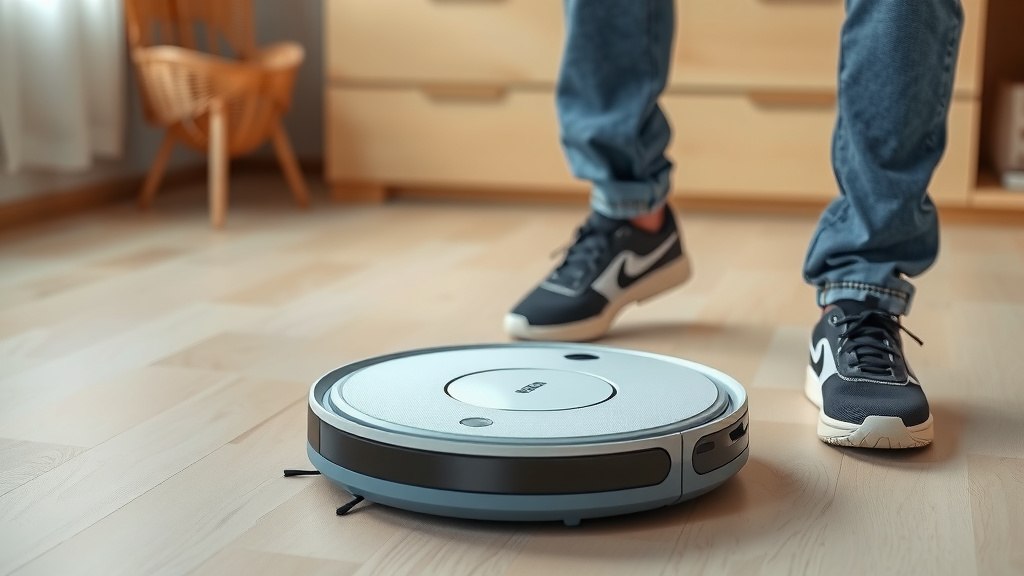
Before you send your robot out, take a quick look around. Pick up small items like toys, shoes, or charging cables. These can get tangled in the brushes or block the robot’s path. Think of it like clearing the runway for an airplane. The smoother the path, the more effective the cleaning will be. We also recommend securing loose rugs or carpets. A robot can get stuck on fringes or thick edges.
Dealing with Pet Messes
Let’s be honest, pets can be unpredictable. If your pet has an accident on the floor, it’s best to clean it up before running your robot vacuum. Many models don’t have specific sensors for liquid waste. If your robot runs over it, it could spread the mess and create a much bigger problem. Many pet owners find that scheduling cleanings for times when pets are outside or supervised helps avoid these situations.
Considering Different Floor Types
Your Samsung robot vacuum is designed for various floor types. It can usually transition from hard floors like tile or hardwood to carpets. However, very thick rugs might pose a challenge. Some models offer specific settings for different floor types within the app. You can often adjust suction power. For example, you might want higher suction on carpets to pull out embedded dirt. Researching your specific model’s capabilities is key here.
Starting a Cleaning Cycle
Now for the main event! Let’s get that dirt picked up.
Manual Start vs. Scheduled Cleaning
You have two primary ways to start cleaning. You can press the start button on the robot itself or use the SmartThings app. Pressing the button on the unit is quick and easy for an immediate clean. For regular maintenance, scheduling is best. Set it to clean while you’re at work or asleep. The app allows for great flexibility here. You can create custom schedules for each day of the week. This automation is one of the biggest benefits of a robot vacuum.
Using Spot Cleaning and Zone Cleaning
Got a small spill or a high-traffic area? Use the spot cleaning feature. This tells the robot to focus on a small, defined area. Zone cleaning is even more advanced. Many newer Samsung models let you define specific rooms or zones within your home. You can then tell the robot to clean just the kitchen or the living room. This is perfect for targeted cleaning without running the vacuum throughout the entire house. We found this feature incredibly useful for quick cleanups.
Maintaining Your Samsung Robot Vacuum
To keep your robot vacuum performing at its best, regular maintenance is essential. It’s not complicated, but it does require attention.
Emptying the Dustbin
The dustbin is where all that dirt and debris goes. How often you need to empty it depends on your home. If you have pets or a lot of foot traffic, you’ll likely need to empty it after every cleaning cycle. For lighter use, every few days might be sufficient. Most models have an indicator when the bin is full. It’s usually a simple process: detach the bin, empty its contents into the trash, and reattach it. Keep the dustbin clean for optimal suction power.
Cleaning and Replacing Brushes and Filters
Over time, hair and debris can get tangled around the main brush and side brushes. Regularly check these and remove any obstructions. Most models come with a small cleaning tool to help with this. The filters are also crucial. They trap fine dust particles. We found that cleaning the filter by tapping it gently over a trash can can extend its life. However, filters are consumables and will need replacement eventually. Check your user manual for recommended replacement intervals, often every few months.
Wiping Down Sensors and Exterior
Your robot vacuum has sensors that help it navigate and avoid obstacles. These need to stay clean. Gently wipe down the sensors with a dry or slightly damp microfiber cloth. Also, give the exterior of the robot a wipe down. This keeps it looking good and ensures the sensors can do their job effectively. A clean robot is a happy, efficient robot!
By following these steps, you’ll be well on your way to enjoying effortlessly clean floors. Your Samsung robot vacuum is a powerful tool, and with a little care and attention, it will serve you well for a long time.
Conclusion
You’ve now got your Samsung robot vacuum set up and ready to clean. We covered everything from that initial charge to connecting it with the SmartThings app. Remember to prep your home by clearing pathways. Keeping up with simple maintenance like emptying the dustbin and cleaning brushes ensures your robot works efficiently for years. You’ve taken the first step toward a cleaner home with less effort. Your next step is to schedule your first automated cleaning cycle right now using the SmartThings app!
Frequently Asked Questions
How often should I empty the robot vacuum’s dustbin?
You should empty your Samsung robot vacuum’s dustbin after each cleaning cycle, especially if you have pets or a busy household. Many models will also indicate when the bin is full. Keeping it emptied ensures optimal suction power for effective cleaning.
Can my Samsung robot vacuum clean multiple floors?
Most Samsung robot vacuums are designed to clean a single floor level. They are not typically built to navigate stairs. If you have a multi-story home, you’ll need to manually move the robot and its charging dock to each floor.
What should I do if my robot vacuum gets stuck?
If your robot vacuum gets stuck, check the SmartThings app for any error messages. Manually free the robot from any obstacles, such as tangled cords or rug fringes. Then, clear the area where it got stuck to prevent future issues.
How do I ensure my robot vacuum has a good Wi-Fi connection?
Place the charging dock in an area with a strong Wi-Fi signal, away from obstructions. If you experience connection problems, try moving your router closer or using a Wi-Fi extender. Ensuring a stable connection is key for app control and map updates.
When should I replace the robot vacuum’s filters and brushes?
Check your robot vacuum’s user manual for specific recommendations. Generally, filters should be replaced every 2-3 months, and brushes should be inspected regularly for wear and cleaned. Replacing them ensures your vacuum maintains peak cleaning performance.
![7 Best Affordable Robot Vacuum With Mapping [2026]](https://robotvacuumfact.com/wp-content/uploads/2026/06/7-best-affordable-robot-vacuum-with-mapping-2026-featured-768x432.jpg)