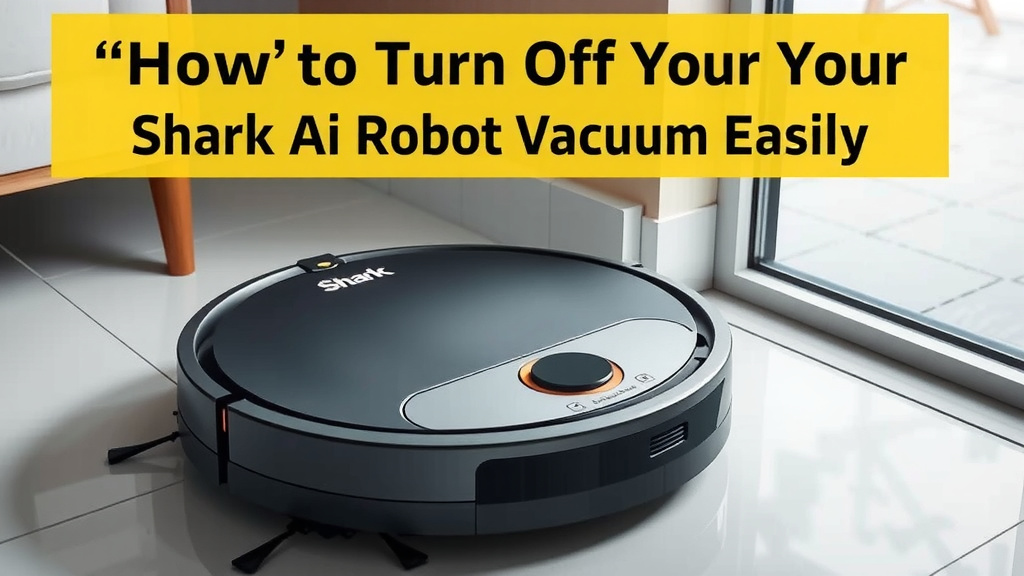
How to Turn Off Your Shark AI Robot Vacuum Easily
Turning off your Shark AI robot vacuum is usually as simple as pressing a button or using the handy mobile app. You can typically stop its cleaning cycle right from the robot itself or from the comfort of your couch. There are a few quick ways to pause or shut it down completely if it’s mid-clean or just needs a break.
We know sometimes you just need your robot helper to take a timeout. Maybe it’s heading back to its dock, or perhaps you need to manually intervene for a moment. Knowing these simple shutdown methods ensures you’re always in control of your cleaning buddy, whether it’s a temporary pause or a full stop for the day. It’s all about making your smart home experience as easy as possible.
- Press the Power/Clean button to pause.
- Press and hold the Power/Clean button to shut down.
- Use the SharkClean app to pause or stop.
- The vacuum automatically shuts down when docked and charging.
Let’s walk through the exact steps so you can get your Shark robot vacuum powered down without any fuss.
Quick Ways to Power Down Your Shark Robot Vacuum
You’ve got this! Turning off your Shark AI robot vacuum is designed to be super easy. We know sometimes you just need to hit the pause button. Whether it’s for a quick break or to get it out of the way, here are the straightforward methods.
Stopping Your Robot Mid-Clean
Sometimes your robot might get itself into a bit of a pickle, or maybe you just need to move it for a moment. Here’s how to stop it immediately.
Using the Power/Clean Button for a Pause
The most direct way to stop your Shark robot is by using the buttons right on the unit itself. It’s like the emergency stop, but for everyday use!
To pause your robot vacuum mid-cycle, simply press the Power/Clean button once. You’ll hear a beep, and the lights on the robot will indicate it has stopped. This is perfect for when you need to pick it up to clean a spill or prevent it from bumping into something delicate.
Fully Shutting Down the Robot
If you want to turn the robot completely off, perhaps for storage or when it’s not in use for a while, there’s a slightly different method.
Press and hold the Power/Clean button for about 5 seconds. The robot will announce it’s shutting down, and all the lights will go off. This is a full power-down, so it won’t resume cleaning until you start it up again.
The SharkClean App: Your Remote Control
Love using your smartphone? The SharkClean app puts the power to pause and stop right in your pocket. It’s incredibly convenient when you’re not near the robot.
Pausing from the App Interface
Open up the SharkClean app on your mobile device. Once your robot is connected, you should see its current status. Look for a button that says “Pause” or an icon that looks like a pause symbol. Tapping this will stop the robot’s cleaning cycle just like pressing the button on the unit.
Stopping the Cleaning Session via the App
If you need to end the cleaning session entirely, the app has you covered. You’ll usually find a “Stop” button or a similar option within the app. This will send the command to your robot to cease its cleaning activities and, depending on its settings, might send it back to its charging base.
Returning to the Dock
Another way to effectively “stop” your robot is to send it back to its charging dock. This can be done either from the robot itself or through the app.
On the robot, you’ll often see a dedicated “Home” or “Dock” button. Pressing this tells your robot to navigate back to its charging station and cease cleaning. Similarly, the SharkClean app usually has a “Return to Dock” command that achieves the same result.
Automatic Shutdown Features
Your Shark robot vacuum is pretty smart and has built-in ways to power down without you lifting a finger. These are often the most common ways it stops working.
When Returning to the Charging Base
Once your robot successfully docks itself and begins charging, it automatically enters a low-power standby mode. It’s not completely “off” in the sense of a manual shutdown, but it’s certainly not cleaning! Think of it as your robot going to sleep for the night.
This is the ideal scenario after a cleaning cycle. The robot is safe, recharging, and ready for its next mission. You don’t need to do anything; it manages this transition itself.
Low Battery Shutdown
Don’t worry about your robot just stopping in the middle of your floor with a dead battery. If the battery gets critically low, most Shark AI robot vacuums are programmed to automatically stop cleaning and attempt to return to their charging base.
This is a crucial feature for battery health and ensuring your robot is always ready. Many guidelines suggest returning to the dock when battery levels are low (Cleveland Clinic). The robot prioritizes its own power needs.
When to Manually Shut Down
While automatic shutdown is great, there are times you absolutely need to intervene. Here are common scenarios where you’ll want to manually stop your robot.
Obstacles and Interference
If your robot gets stuck under furniture, tangled in cords, or finds itself in a place it shouldn’t be, you need to stop it. Continuing to run could damage the robot or the surrounding items. A quick press of the power button saves the day.
Before Moving or Cleaning the Robot
You wouldn’t want to clean your vacuum while it’s running, right? Before you lift it, wipe it down, or clear its bin, always ensure it’s powered off. This prevents accidental starts and keeps you safe. Many experts advise ensuring all devices are powered down before maintenance (NIH).
During Software Updates or Troubleshooting
Sometimes, you might need to perform troubleshooting steps or ensure a software update is applied correctly. In these cases, a full manual shutdown might be recommended by the support documentation. This helps ensure a clean slate for any new processes. In these cases, a full manual shutdown might be recommended by the support documentation.
Checklist: Getting Your Shark Robot Powered Down
Here’s a quick rundown to help you remember the steps:
- Pause: Press the Power/Clean button once for a temporary stop.
- Full Shutdown: Press and hold the Power/Clean button for 5 seconds.
- App Pause: Use the “Pause” function in the SharkClean app.
- App Stop: Use the “Stop” or similar command in the SharkClean app.
- Return to Dock: Press the Home/Dock button or use the app command.
- Automatic Mode: Let it dock and charge; it will enter standby.
Conclusion
You’ve learned how easy it is to control your Shark AI robot vacuum’s power. Whether you need a quick pause mid-clean, a full shutdown for storage, or simply want to send it back to its dock, the methods are straightforward. You can use the buttons on the robot or the convenient SharkClean app. Remember, your robot also has smart auto-shutdown features for charging and low battery situations, making its operation even simpler.
Always remember to manually shut down your robot before performing any maintenance or if it gets stuck. Knowing these steps ensures you’re always in command of your cleaning companion. Now you can confidently manage your robot’s power whenever you need to!
Frequently Asked Questions
How do I completely turn off my Shark AI robot vacuum if I won’t be using it for a while?
To fully shut down your Shark AI robot vacuum, press and hold the Power/Clean button on the unit for about 5 seconds. The robot will confirm it’s shutting down with an announcement, and all its lights will turn off. This ensures it’s completely powered down for extended periods.
Can I stop my Shark robot vacuum remotely if I’m not home?
Yes, you absolutely can! The SharkClean app allows you to pause or stop your robot’s cleaning session from anywhere. Just open the app and use the “Pause” or “Stop” command to control your robot remotely.
What happens if my Shark robot vacuum’s battery gets too low?
If the battery level becomes critically low, your Shark AI robot vacuum is designed to automatically stop cleaning. It will then attempt to navigate back to its charging base on its own. This feature helps protect the battery and ensures your robot can recharge for its next task.
Is it okay to just leave my Shark robot vacuum on its charging dock all the time?
Yes, it’s perfectly fine and recommended to leave your Shark robot vacuum on its charging dock when not in use. Once it docks and starts charging, it automatically enters a low-power standby mode. This keeps it ready for its next cleaning cycle without you needing to turn it on or off.
My robot is stuck under the couch. How do I stop it immediately?
If your robot gets stuck, the quickest way to stop it immediately is to press the Power/Clean button on the robot itself once. This will pause its cleaning cycle, allowing you to safely retrieve it without risking damage to the robot or your furniture.